
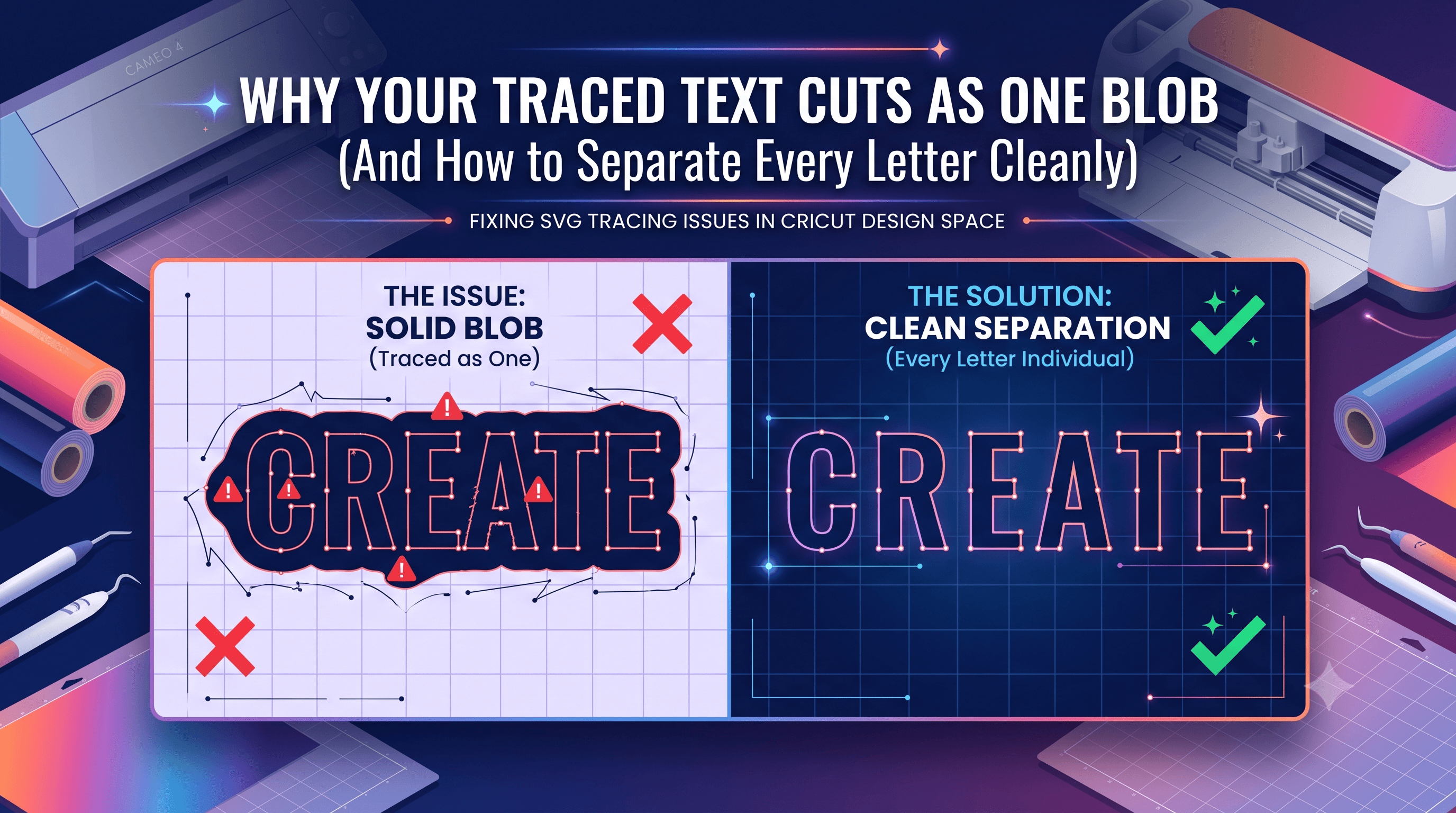
Why Your Traced Text Cuts as One Blob
If your traced text is coming out of Cricut Design Space as one solid shape instead of individual letters, the font isn't broken and neither is your machine. This is almost always a kerning or path-overlap issue created during auto-trace, where letters that were touching or too close in the original image get welded into a single object. The fix is usually a few minutes of cleanup, not a redo from scratch.
Why Auto-Traced Text Merges Letters in the First Place
When you trace an image in Design Space, the tool doesn't see "letters." It sees pixels and edges, and it builds a path around whatever shapes it finds. If two letters are touching, overlapping, or sitting close enough that the trace can't tell them apart, it draws one continuous outline around both.
This is different from typing text with a font, where each letter is its own separate object by default. A traced word starts life as a single image, so Design Space treats the whole thing as one flat picture until you tell it otherwise. Script fonts, hand-lettered designs, and anything with tight spacing are especially prone to this because there's less visual gap between letters for the trace to latch onto.
If you want to understand how tracing converts pixels to cut paths, check out this breakdown of converting images to SVG for Cricut.
The Two Different Symptoms (And Why They're Not the Same Problem)
Crafters often lump these together, but they need different fixes:
- Letters filled in solid: The interior of a letter like an "O" or "A" cuts as a solid shape instead of leaving the hole open. This is a path direction or fill-rule problem, not a spacing problem.
- SVG cuts double lines: The blade traces the same edge twice, leaving a rough or doubled cut line. This is usually caused by duplicate or overlapping paths in the file, not merged letters.
If your letters are stuck together as one blob, you're dealing with a merge issue. If individual letters cut fine but look doubled or messy along the edges, that's a separate node or path problem. Trying to fix one with the other's solution just wastes time.
How Font Choice Affects This Problem
Not all fonts trace equally. Bold, block-style fonts have wide gaps between letters and clean, closed counters, so they hold up well through the trace process. Script and connected fonts are built to look joined, which means the trace often can't tell where one letter ends and the next begins.
Kerning in your original design matters just as much as font style. If letters were tightly kerned or overlapping before you ever traced the image, no amount of cleanup in Design Space will fully undo that. The spacing problem existed before the file reached Cricut. It's worth checking your source file's letter spacing before you trace, especially if you're working with a font you haven't used for cutting before.
Still deciding which fonts to bring into Design Space and how to get them uploaded correctly? This guide on uploading fonts to Cricut Design Space walks through the setup.
How to Fix Kerning in a Traced SVG
- Identify where letters touch in path view. Click into the layer and look at the outline closely, either in Design Space's edit view or in a vector editor before upload. Any spot where two letters share a border or overlapping path is where the trace fused them.
- Adjust the spacing. If you're working from the original file, add space between the tight letters and re-trace. If you're working directly with the traced SVG, you'll need to manually pull the connected paths apart at the touch point.
- Re-check after adjusting. Zoom in on every letter again after your fix. It's common to solve one merge point and miss a second one further down the word, especially in longer phrases.
Separating Connected Letters and Fixing Solid Fills
Once you've found where letters are merged or filled solid, work through the cleanup layer by layer:
- Isolate the merged group. Select just the word or section that's fused, rather than trying to fix the whole design at once. This keeps you from accidentally shifting parts that are already correct.
- Release or separate the joined paths. Break apart the compound path so each letter becomes its own object. This is the step that actually turns one blob into individual, selectable letters.
- Restore letter holes. Letters like A, O, R, and B have interior shapes that need to stay open. If they're filled in solid, you'll need to reset the path direction on the inner shape so Design Space reads it as a hole instead of a fill.
- Confirm each letter is independent. Click on individual letters to make sure they select on their own, not as part of a bigger group. If a letter still drags its neighbor along, it's not fully separated yet.
This kind of letter-by-letter cleanup is tedious on a short word and genuinely time-consuming on a full phrase or quote. It's the part of SVG cleanup that CutMagic's Canvas Editor is built to handle, letting you fix separation and hole issues without manually fighting with path points on every single letter.
When to Weld Letters Back Together (And When Not To)
Here's where things get confusing for a lot of crafters: sometimes you actually want letters connected. A script font with a flowing, joined look is often welded on purpose to hold the design together as one cut piece.
Weld letters only after you've confirmed each one is clean and correctly separated on its own. If you weld first, any merge errors or filled-in holes get baked into the welded shape and become much harder to isolate and fix. Fix each letter individually, confirm the holes are open, and only then combine what you actually want joined.
Simplify the SVG Before It Reaches Design Space
Auto-traced text often carries far more nodes than it needs, especially from lower-quality source images or busy fonts. Extra nodes don't just slow things down. They create more opportunities for paths to overlap and merge, which compounds the exact letter-fusing problem this article is about.
Too many nodes can also trigger a "file too complex" error in Design Space, stopping your cut before it even starts. Simplifying the path, reducing unnecessary nodes, and cleaning up stray points before upload solves both problems at once. Here's a full walkthrough on fixing the file too complex error in Cricut if you're running into that alongside merged letters.
The Takeaway
Traced text problems almost always come down to two questions. Are the letters actually separate objects, or are they still fused into one path? And are the letter holes intact, or are they filling in solid where they should stay open? Check both before you cut, and most "broken font" frustrations turn out to be a five-minute fix.