
Cricut "File Too Complex" Error: What It Means and How to Fix It
If Design Space just rejected your upload with a Cricut file too complex message, the problem is almost always that your SVG has too many anchor points for the app to process, almost always because the file was auto-traced from a photo. Nothing is wrong with your machine and nothing is wrong with your account.
In this guide, we'll cover what the error actually means, why anchor point count is the root cause, and how to fix it, either by hand in Inkscape or automatically with a one-click tool.
What Causes the "File Too Complex" Error
Every curve in an SVG is built from anchor points, the small nodes that define where a line bends. Design Space has to calculate the cut path through every one of those points before it can render your project. A design with a few hundred nodes processes instantly. A design with tens of thousands of nodes overwhelms the app, and it rejects the upload rather than freezing your browser.
The most common trigger is a file that started as a photo. Run a JPG or PNG through an auto-trace function and the software traces every pixel-level edge it can detect, not the clean outline a human designer would draw by hand. A single traced leaf can end up with hundreds of nodes where twenty would do. That's also why the error shows up even on designs that look simple: auto-trace doesn't know the difference between a shape's true outline and pixel noise along its edge.
File size tells the same story from a different angle. SVGs sitting anywhere near 5MB almost always carry that kind of node bloat, since a clean, intentionally drawn design rarely gets anywhere close to that size. If your file is large, assume it's node-heavy before you assume anything else.
There's no single confirmed cutoff published by Cricut. File size is the more reliable stand-in: an SVG anywhere near 5MB is carrying far more nodes than it needs, regardless of how simple the design looks on screen.
Files that tend to trigger this error:
- Mandalas and other intricate line art with dense repeating detail
- Photos or images run through an auto-trace tool
- Marketplace designs sold without a Cricut-ready simplification pass
- Layered files where every layer inherited the full trace complexity from the original
Why Too Many Nodes Becomes a Problem
Here's a real example: a design with 847 nodes, simplified down to 52, with no visible change to the shape.
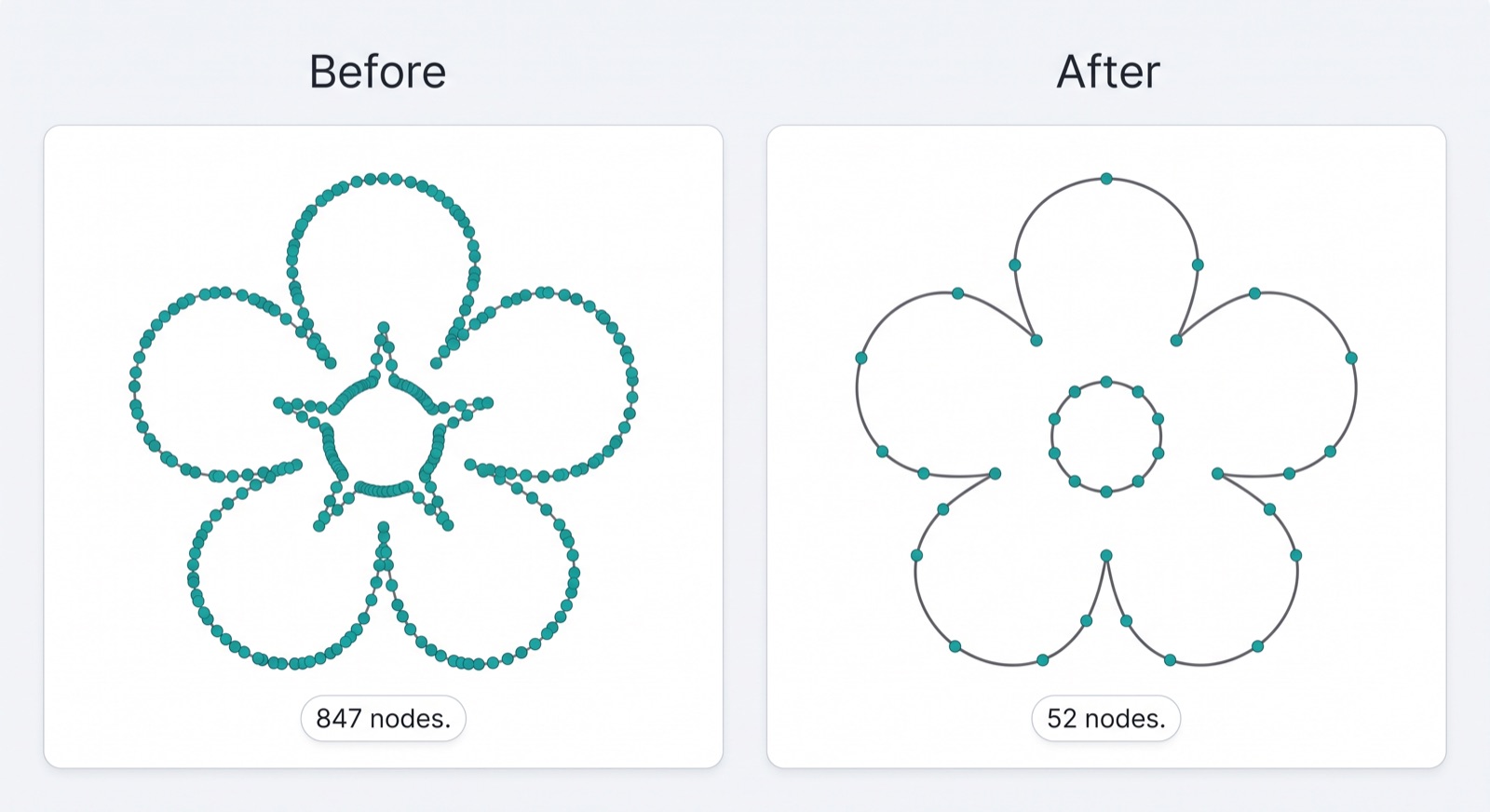
Simplification doesn't remove detail. It removes redundant points sitting along a curve that was already smooth, points that were never doing any visual work in the first place. Picture a straight line described by two points versus that same straight line described by two hundred points crammed along its length. Both draw the identical line. One just makes Design Space do two hundred times the math for nothing.
That's the entire fix, in concept: fewer points describing the same shape, not a worse version of your design.
How to Fix It
You don't need Illustrator for this. Inkscape is free and handles the exact same simplification, and it takes under a minute by hand.
Fix It Automatically with SVG Fixer
If you'd rather skip the software entirely, CutMagic's SVG Fixer reads your file, finds the same kind of node bloat as the 847-to-52 example above, and strips it out without touching the shape of your design. It targets exactly the redundancy that auto-trace tools leave behind, so a file that was rejected for being too complex comes back out the other side ready to upload.
Drop your file in, and it hands back a clean SVG in seconds instead of the two or three rounds of manual simplifying in Inkscape.
Common Mistakes to Avoid
Run your file through either fix above and it should upload clean on the next try. If it still gets rejected, the file likely has embedded raster images or hidden layers on top of the node count, which is a different problem worth checking on its own.
Wrapping Up
A Cricut file too complex error is a node count problem, not a machine or account problem, and it's fixable in minutes either way. Simplify in Inkscape if you want to stay in free software, or run it through SVG Fixer if you'd rather skip the manual steps altogether.
For the fuller picture on building files that upload clean the first time, see the full walkthrough.