
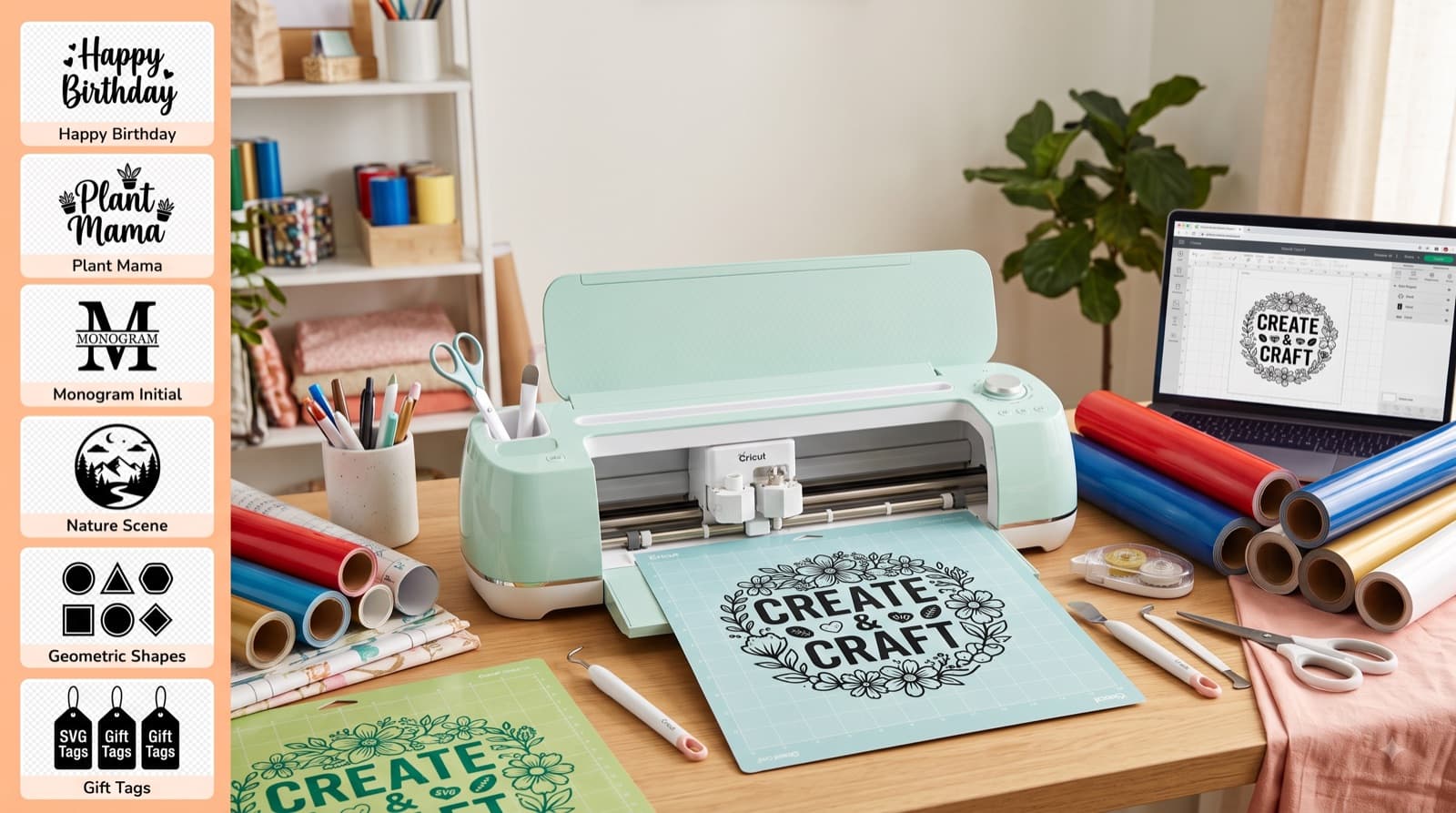
How to Make Your Own SVG Files for Cricut (2026 Beginner's Guide)
Last Updated: January 2026
Tired of paying for SVG files? Want to create exactly what you envision instead of settling for what's available?
You're in the right place.
Creating your own SVG files for Cricut is easier than you think. You don't need to be a graphic designer, and you don't need expensive software.
In this guide, I'll show you 5 different methods to create custom SVG files, from beginner-friendly to advanced:
- Design Space Built-In Tools (easiest, but limited)
- Free Online Tools (Canva, Figma, Vector Creator)
- Inkscape (free desktop software, most powerful)
- Adobe Illustrator (paid, professional)
- AI SVG Generators (newest, fastest)
Each method includes step-by-step instructions and real examples.
Let's create your first custom SVG!
Table of Contents
- What is an SVG and Why Does Cricut Need Them?
- Method 1: Design Space Built-In Tools
- Method 2: Free Online Tools
- Method 3: Inkscape (Free Desktop Software)
- Method 4: Adobe Illustrator
- Method 5: AI SVG Generators
- How to Optimize SVGs for Cricut
- Common Mistakes to Avoid
- FAQs
What is an SVG and Why Does Cricut Need Them? {#what-is-svg}
SVG stands for Scalable Vector Graphic. Unlike photos (JPG/PNG), SVG files use mathematical shapes instead of pixels.
Why This Matters for Cricut:
| PNG/JPG (Raster) | SVG (Vector) |
|---|---|
| Made of pixels | Made of paths/shapes |
| Gets blurry when scaled | Stays crisp at any size |
| Cricut can't cut it directly | Cricut cuts perfectly |
| File size increases with quality | Small file size |
Example:
- A PNG star is 1,000 x 1,000 pixels
- An SVG star is "5 points, radius 100, center at 0,0"
When you scale the star to 10 inches or 10 feet, the SVG recalculates and stays perfect. The PNG gets pixelated.
Cricut needs SVGs because its blade follows the vector paths to cut precisely.
Method 1: Design Space Built-In Tools {#method-1-design-space}
Best for: Simple shapes, text, and combining existing images Cost: Free (with Cricut Access for full library) Skill level: Beginner Time: 10-30 minutes
Design Space has basic drawing tools you can use without leaving the app.
What You Can Create:
✅ Custom text designs ✅ Simple shapes (circles, squares, stars) ✅ Combine and layer existing Cricut images ✅ Add text to existing designs
❌ Complex illustrations ❌ Hand-drawn art ❌ Intricate patterns
Step-by-Step: Create a Custom Text SVG
Example: Make a "Happy Birthday" banner SVG
Open Design Space and click New Project
Add text:
- Click Text in the left sidebar
- Type "Happy Birthday"
- Choose a font (I recommend Babette or Cricut Sans)
Curve the text (optional):
- Select the text
- Click Curve at the top
- Drag the slider to arc the text
Add a shape:
- Click Shapes in sidebar
- Choose Rectangle or Banner shape
- Resize to fit behind text
Change to different cut types:
- Select text → Change line type to Cut
- Select banner → Change to Score (for folding lines)
Group and upload:
- Select all (Ctrl+A / Cmd+A)
- Click Attach (bottom right) to keep elements together
- Save project
To export as SVG for sharing:
- Design Space doesn't directly export SVGs
- But you can print to PDF, then convert PDF to SVG using CloudConvert
Limitations:
- You can't draw freeform shapes
- Limited customization compared to real design software
- Can't import hand-drawn art
Best Use Case: Quick customizations of existing Cricut images with added text.
Method 2: Free Online Tools {#method-2-online-tools}
Best for: Intermediate designs without installing software Cost: Free (with limitations) Skill level: Beginner to Intermediate Time: 20-60 minutes
Option A: Canva
Website: canva.com Best for: Text-based designs, simple graphics
What You Can Create:
- Quote posters
- Name signs
- Simple logos
- Layered text designs
Step-by-Step: Create a Quote SVG
Sign up for free at canva.com
Create custom size:
- Click Create a design → Custom size
- Enter 12 x 12 inches (or your desired size)
- Click Create
Add elements:
- Click Text → Add a heading
- Type your quote (e.g., "Be Kind")
- Choose a bold, clean font (avoid script fonts for cutting)
Add shapes (optional):
- Click Elements → Search "circle" or "heart"
- Drag onto canvas
- Resize and position behind text
Adjust colors:
- Select each element
- Click the color box
- Choose solid colors (no gradients!)
Download as SVG:
- Click Share → Download
- Select SVG format (requires Canva Pro trial or subscription)
- Click Download
Canva Limitations:
- SVG export requires Canva Pro ($12.99/month)
- Can't create truly complex illustrations
- Some fonts don't convert well to SVG
Free Alternative: Use Canva's free trial for a month, then cancel.
Option B: Figma
Website: figma.com Best for: More control, 100% free SVG export
What You Can Create:
- Custom shapes
- Layered designs
- Simple illustrations
- Text designs
Step-by-Step: Create a Custom Shape SVG
Sign up free at figma.com
Create a file:
- Click New design file
- Frame size: 1200 x 1200 px
Draw shapes:
- Press R for rectangle tool
- Draw a rectangle
- Press O for oval tool
- Draw a circle
Use the pen tool for custom shapes:
- Press P for pen tool
- Click to place anchor points
- Draw your custom shape
- Close the path by clicking the start point
Add text:
- Press T for text tool
- Click and type
- Use web-safe fonts for best compatibility
Export as SVG:
- Select all elements (Ctrl+A / Cmd+A)
- Right-click → Copy as SVG
- Paste into a text editor → Save as
.svg
OR:
- Select elements
- Click Export (right sidebar)
- Choose SVG
- Click Export
Figma Advantages:
- 100% free
- More powerful than Canva
- Professional-grade tool
- Great for learning vector design
Figma Limitations:
- Steeper learning curve
- Web-based (requires internet)
Option C: Boxy SVG
Website: boxy-svg.com Best for: Quick edits and simple SVG creation
Features:
- Browser-based vector editor
- Free with limitations (paid version is $9.99 one-time)
- Similar interface to Illustrator
- Direct SVG export
Best Use: Quick edits to existing SVGs or simple shape creation.
Method 3: Inkscape (Free Desktop Software) {#method-3-inkscape}
Best for: Complex designs, full control, 100% free Cost: Free forever Skill level: Intermediate to Advanced Time: 1-3 hours to learn, then 30min-2hrs per design
Inkscape is the most powerful free vector editor. It can do 90% of what Illustrator does.
What You Can Create:
✅ Hand-drawn art (trace from photos) ✅ Complex illustrations ✅ Intricate mandalas ✅ Layered, multi-color designs ✅ Convert photos to SVG
Getting Started with Inkscape
Download: inkscape.org
Installation:
- Download for Windows/Mac/Linux
- Install (completely free, no trial)
- Open Inkscape
Interface Overview:
- Toolbar (left): Drawing tools
- Canvas (center): Your design area
- Tools options (top): Adjust selected tool
- Layers (right): Organize elements
Project: Create a Simple Floral SVG
Step 1: Set up canvas
- Open Inkscape
- Go to File → Document Properties
- Set size to 12 x 12 inches
- Close dialog
Step 2: Draw a flower
- Click the Circle tool (F5) in left toolbar
- Hold Ctrl and drag to draw a perfect circle (the center)
- Click the Star tool (*)
- In tool options at top:
- Set Corners: 5
- Spoke ratio: 0.4 (makes rounded petals)
- Hold Ctrl and drag to draw a star (the petals)
Step 3: Color your shapes
- Select the circle
- Click a color in the bottom palette
- Select the star
- Click a different color
Step 4: Arrange layers
- Select the circle
- Go to Object → Raise (or press PgUp)
- Now the circle is on top
Step 5: Add a stem
- Click the Bezier tool (B) — this draws paths
- Click to place points for a curved stem
- Press Enter when done
- Click Edit paths by nodes (F2)
- Drag the points to adjust the curve
- Change the stroke (outline) color in the bottom palette
Step 6: Convert strokes to paths (Important for Cricut compatibility!)
- Select the stem
- Go to Path → Stroke to Path
- This converts the line to a shape Cricut can cut
Step 7: Save as SVG
- Go to File → Save As
- Name your file
- Set Save as type: Plain SVG
- Click Save
Advanced Inkscape Techniques
Trace a photo to SVG:
- Import a photo (File → Import)
- Select the image
- Go to Path → Trace Bitmap
- Adjust threshold and click OK
- Delete the original photo layer
Text on a path:
- Draw a path (curved line)
- Add text
- Select both
- Go to Text → Put on Path
Boolean operations:
- Combine shapes: Path → Union
- Subtract shapes: Path → Difference
- Intersect shapes: Path → Intersection
Inkscape Advantages:
- Completely free
- Very powerful
- Huge online community (tons of tutorials)
- Works offline
Inkscape Limitations:
- Steeper learning curve
- Interface is dated
- Can be slow with very complex files
Method 4: Adobe Illustrator {#method-4-illustrator}
Best for: Professional designs, commercial work Cost: $20.99/month (or $54.99/month for all Adobe apps) Skill level: Intermediate to Advanced Time: 2-4 hours to learn basics
Illustrator is the industry standard for vector graphics. If you're serious about creating SVGs, it's worth learning.
What You Can Create:
✅ Everything Inkscape can do, but faster ✅ Professional-quality logos ✅ Packaging designs ✅ Detailed illustrations ✅ Commercial designs for sale
Quick Start Guide
Get Illustrator:
- Adobe.com → Start free trial (7 days)
- Or subscribe ($20.99/month)
Create a new file:
- File → New
- Set to 12 x 12 inches
- Color mode: RGB
- Click Create
Use the shape tools:
- Rectangle tool (M)
- Ellipse tool (L)
- Polygon tool
- Star tool
Pen tool for custom shapes:
- Press P for pen tool
- Click to add anchor points
- Drag to create curves
- Press Esc to finish path
Export for Cricut:
- File → Export → Export As
- Choose SVG
- Click Export
- In SVG Options:
- Styling: Presentation Attributes
- Decimal Places: 3
- Uncheck Responsive
- Click OK
Key Illustrator Features for Cricut:
Image Trace (convert photos to vector):
- Place a photo (File → Place)
- Select image
- Click Image Trace in top toolbar
- Choose a preset (Black and White, 3 Colors, etc.)
- Click Expand to convert to paths
Offset Path (create outlines):
- Select a shape
- Object → Path → Offset Path
- Enter offset amount (e.g., 0.1 inches)
- This creates a border perfect for layering
Pathfinder (combine shapes):
- Window → Pathfinder
- Use Unite, Minus Front, Intersect, Exclude to combine shapes
Illustrator Advantages:
- Fastest workflow
- Best tools and features
- Industry standard
- Excellent tutorials everywhere
Illustrator Limitations:
- Expensive
- Overkill for simple projects
- Requires subscription (can't buy outright)
Method 5: AI SVG Generators {#method-5-ai-generators}
Best for: Fast, custom designs from text descriptions Cost: Varies ($0-$30/month) Skill level: Beginner (if the tool works well) Time: 2-5 minutes per design
This is the newest and fastest method. AI tools generate SVG files from text prompts.
How It Works:
- You type: "Create a floral wreath SVG with roses and leaves"
- AI generates an SVG file in seconds
- You download and cut
AI SVG Generator Options:
Option A: Our Tool (Recommended)
What makes it different:
- Optimized specifically for Cricut (not generic SVGs)
- No complexity errors (files guaranteed to upload)
- Style control (coloring pages, modern, decorative)
- Text effects (curved, shadowed, outlined text)
Example prompts:
- "Happy Birthday banner with balloons"
- "Floral wreath with roses and eucalyptus leaves"
- "Mountain landscape silhouette"
Output: Ready-to-cut SVG file, optimized for Design Space
👉 Join the waitlist to be first to try (launching soon!)
Option B: Generic AI Art Tools
DALL-E, Midjourney, Stable Diffusion:
- These create raster images (PNG/JPG), not SVGs
- You'd need to manually trace them in Inkscape/Illustrator
- Not recommended for direct Cricut use
SVG-specific AI tools:
- Most are experimental and produce messy code
- Files often don't upload to Design Space
- Require manual cleanup
How to Optimize SVGs for Cricut {#optimize-for-cricut}
No matter which method you use, follow these steps before cutting:
1. Simplify Complex Paths
In Inkscape:
- Select all (Ctrl+A / Cmd+A)
- Path → Simplify (Ctrl+L / Cmd+L)
- Repeat 2-3 times
In Illustrator:
- Select all
- Object → Path → Simplify
- Set Curve Precision to 85-95%
Why: Reduces anchor points, prevents "file too complex" errors.
2. Convert Text to Paths
In Inkscape:
- Select text
- Path → Object to Path
In Illustrator:
- Select text
- Type → Create Outlines
Why: Fonts won't embed correctly unless converted to paths. This ensures your text looks the same on any machine.
3. Remove Invisible Elements
- Check your layers panel
- Delete any hidden layers
- Remove guides, grids, or construction lines
4. Use Solid Colors Only
- No gradients (Design Space doesn't support them)
- No shadows or glows
- No transparency effects
- Solid fills only
5. Save as Plain SVG
In Inkscape:
- File → Save As → Plain SVG (not Inkscape SVG)
In Illustrator:
- File → Export → Export As → SVG
- Use SVG Tiny 1.2 profile
Why: "Plain SVG" removes editor-specific code that Design Space can't read.
6. Test Upload Before Cutting
- Upload to Design Space
- Check that all layers separated correctly
- Zoom to 400% to verify details
- Do a test cut on scrap material
Common Mistakes to Avoid {#common-mistakes}
❌ Mistake #1: Using Raster Images
Problem: You try to cut a PNG/JPG Solution: Always convert to SVG first (trace in Inkscape/Illustrator)
❌ Mistake #2: Not Converting Text to Paths
Problem: Text looks different or disappears Solution: Always convert text to paths before exporting
❌ Mistake #3: Too Many Anchor Points
Problem: "File too complex" error Solution: Simplify paths before exporting
❌ Mistake #4: Saving as Illustrator SVG
Problem: File won't upload to Design Space Solution: Export as "Plain SVG" or "SVG Tiny 1.2"
❌ Mistake #5: Using Strokes Instead of Fills
Problem: Thin lines don't cut properly Solution: Convert all strokes to paths (Path → Stroke to Path)
❌ Mistake #6: Gradients and Effects
Problem: Design looks flat or wrong in Design Space Solution: Use only solid colors and simple shapes
❌ Mistake #7: Not Testing Before Cutting
Problem: Design cuts incorrectly, wastes material Solution: Always test upload and do a scrap cut first
FAQs {#faqs}
Q: What's the easiest way to make SVGs if I'm not artistic?
A: Use AI generators (like ours) or start with Design Space's built-in shapes and text tools. You don't need to draw anything from scratch.
Q: Can I sell SVGs I create?
A: Yes, as long as:
- You created the design yourself (or used AI tools that grant commercial rights)
- You didn't trace copyrighted images
- You didn't use fonts that prohibit commercial use
Always check license terms for fonts and source images.
Q: Do I need a drawing tablet?
A: No! Most vector work uses mouse/trackpad. Drawing tablets help for illustration work but aren't required.
Q: How long does it take to learn?
Method estimates:
- Design Space: 1-2 hours
- Canva/Figma: 3-5 hours
- Inkscape: 10-20 hours
- Illustrator: 20-40 hours
- AI generators: 5 minutes
Q: Can I use Procreate to make SVGs?
A: Procreate creates raster images, not vectors. You can:
- Draw in Procreate
- Export as PNG
- Trace in Inkscape/Illustrator to convert to SVG
But it's not a direct SVG creator.
Q: What's the best method for beginners?
A: Start with:
- Design Space (if you just want to customize text)
- Canva (if you want simple graphics)
- AI generators (if you want fast custom designs)
Then move to Inkscape when you're ready for more control.
Final Thoughts: Start Creating Today
You don't need to master every method. Pick one that matches your skill level and needs:
- Just starting? → Use Design Space or AI generators
- Want more control? → Learn Inkscape (free!)
- Going professional? → Invest in Illustrator
The key is to start simple and experiment without pressure.
Your first SVGs won't be perfect—that's normal. But every design teaches you something new.
Ready to skip the learning curve?
Our AI-powered SVG generator creates Cricut-optimized files in seconds—no design skills needed.
👉 Join the waitlist to be the first to try it (launching soon!)
Related Posts
- Why Won't My SVG Upload to Cricut? (Complete Guide)
- Cricut SVG Compatibility Checklist
- 10 Free Cricut SVG Files That Actually Work
About the Author: I've created over 1,000 custom SVG files using every method in this guide. These are the exact steps I wish someone had taught me when I started.
Last Updated: January 2026
