
Print Then Cut Registration Errors: Fixing Misaligned Cuts on Cricut and Silhouette
Your design prints exactly right, colors sharp, layout clean, and then the cut lands nowhere near it. This is the moment most crafters start Googling print then cut registration marks not reading, assuming their machine is broken. It usually isn't. Both Cricut and Silhouette rely on the same basic principle: a sensor scans printed marks to figure out exactly where your design sits before the blade moves. When that scan fails or reads wrong, the cut drifts. The good news is that the causes are a short, repeatable list, not a random glitch you can't pin down.
How Registration Marks Are Supposed to Work
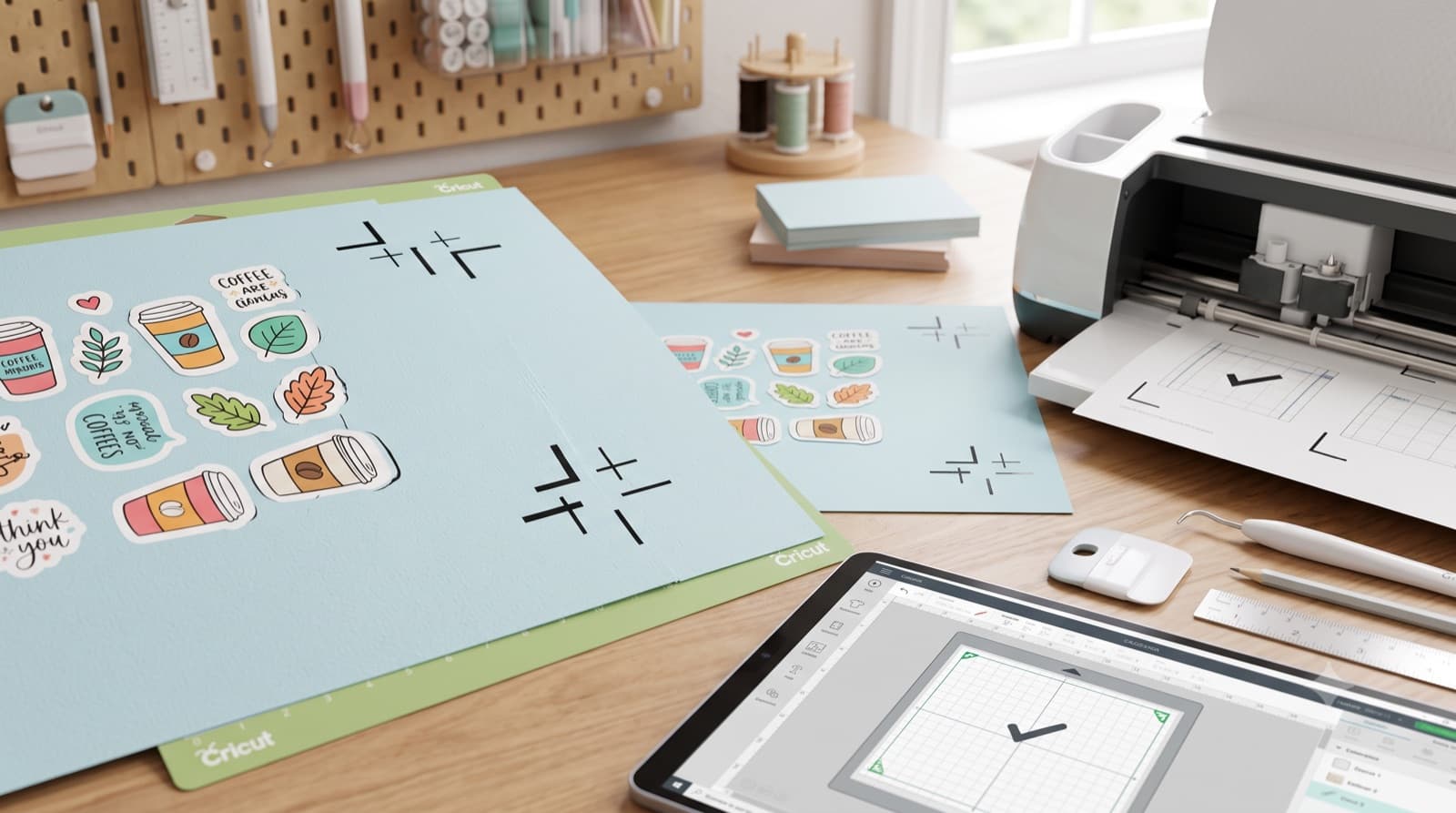
Every print then cut file includes small black squares, usually placed in the corners of the print area. When you send the design to print, those marks print alongside your artwork. The machine's optical sensor then scans the page, locates each mark, and uses their positions to calculate exactly where the printed design sits relative to the mat.
Here's the part that matters: any gap between what the sensor reads and where the design actually printed becomes a misaligned cut. The sensor isn't guessing, it's doing math based on those four points, so if even one point is off by a fraction of an inch, the whole cut shifts, sometimes just barely, sometimes enough to ruin the piece. That's why registration errors can feel inconsistent from one print to the next. A tiny variable, like a slightly different paper feed or a printer that's due for maintenance, is often all it takes.
Why Cricut Fails to Detect the Registration Mark
Cricut failure to detect registration mark errors almost always trace back to one of four causes:
- Printer set to "fit to page" instead of actual size. Most home printers default to scaling documents to fit the paper. That shrinks or stretches your design just enough to throw off the registration marks, even though nothing looks visibly wrong on the printed page. Always double-check your print dialog before hitting print, not just the first time you set up your printer.
- Marks printed too light or on the wrong paper. Faded ink, low toner, or textured and glossy paper all make it harder for the sensor to read a clean, high-contrast square. If you can squint and barely see the mark yourself, the sensor will struggle too. Matte cardstock tends to read more reliably than glossy photo paper for this reason.
- Mat not fully flat, or marks too close to the edge. A curled mat or a design positioned right at the mat's border gives the sensor less room to work with, and it can lose track of the mark entirely. If you're also seeing SVG file too complex errors in Design Space around the same project, it's worth reading How to Fix SVG File Too Complex Error in Cricut Design Space to rule out a file-level cause before assuming it's a registration issue.
- Ambient lighting interfering with the scan. Bright overhead light, sunlight through a window, or even a phone flash nearby can confuse the sensor mid-scan. It sounds minor, but it's one of the more common culprits people overlook, especially in a craft room with a lot of natural light.
Why Silhouette Registration Marks Fail the Same Way
Silhouette registration marks failed errors follow a similar pattern, though the sensor logic differs slightly from Cricut's:
- Wrong registration mark type selected. Silhouette Studio lets you choose between mark styles depending on your mat size and machine model. Picking the wrong one means the machine is looking for marks that don't match what actually printed, which reads to the software as a failed detection rather than a settings mismatch.
- Print and cut settings referencing the wrong page size or margin. If your printer's page setup doesn't match what Silhouette Studio expects, the marks end up shifted from where the software thinks they are, even by a small amount. Small shifts compound across a full sheet, so what looks like a minor mismatch on screen can become a visibly crooked cut.
- Marks placed too close together. Every Silhouette model has a minimum detection distance between registration marks. Cramming them closer, often to save paper or fit a small design onto a smaller sheet, can push you under that threshold and cause a failed read even when everything else about the file is correct.
If none of the causes above match your setup, rescan under different lighting and on a flat mat before touching any settings. A lot of "failed" reads are just a bad first pass.
How to Calibrate Cricut Print Then Cut Properly
If you want to calibrate Cricut print then cut correctly instead of guessing at offsets, run through this once and then repeat it any time something in your setup changes.
Troubleshooting Silhouette Print and Cut Step by Step
For Silhouette print and cut troubleshooting, work through these in order before assuming the file is broken:
- Confirm the correct registration mark style is selected for the mat size you're using.
- Check your printer settings for "actual size," not "fit to page."
- Rescan if the first read fails. A failed scan doesn't mean the file is corrupted, it often just means the sensor needs another pass under better lighting or with the mat repositioned.
- Test on scrap material before committing to your final piece, especially with new paper, a new printer, or a design you haven't printed before.
Preventing Misalignment Before It Ever Reaches the Machine
A lot of print then cut misaligned cut problems don't start at the machine at all. They start upstream, in a file where the design isn't centered correctly in the print area, or where the margins around the registration zone are too tight for the marks to print and scan cleanly.
CutMagic's Canvas Editor helps catch this before the file goes anywhere near a printer, keeping your design centered with consistent space around the registration marks so they have room to print and scan the way they're supposed to. It's a small layout check, but it removes one of the more common upstream causes before you've spent any paper or time on a test print.
If SVG structure issues are part of what's going wrong in your files more broadly, Why Your SVG Won't Cut in Silhouette Studio: The Compound Path Problem No One Warns You About covers a closely related troubleshooting category worth ruling out.
The Takeaway
Registration errors almost always trace back to print settings, calibration drift, or file layout, not a failing machine. On Cricut, that usually means checking "actual size" printing, mark contrast, a flat mat, and ambient light. On Silhouette, it usually means the mark type, page setup, and spacing between marks. Once you know which of these it is, the fix is usually one of a short, repeatable list rather than a mystery you have to solve from scratch every time it happens.