
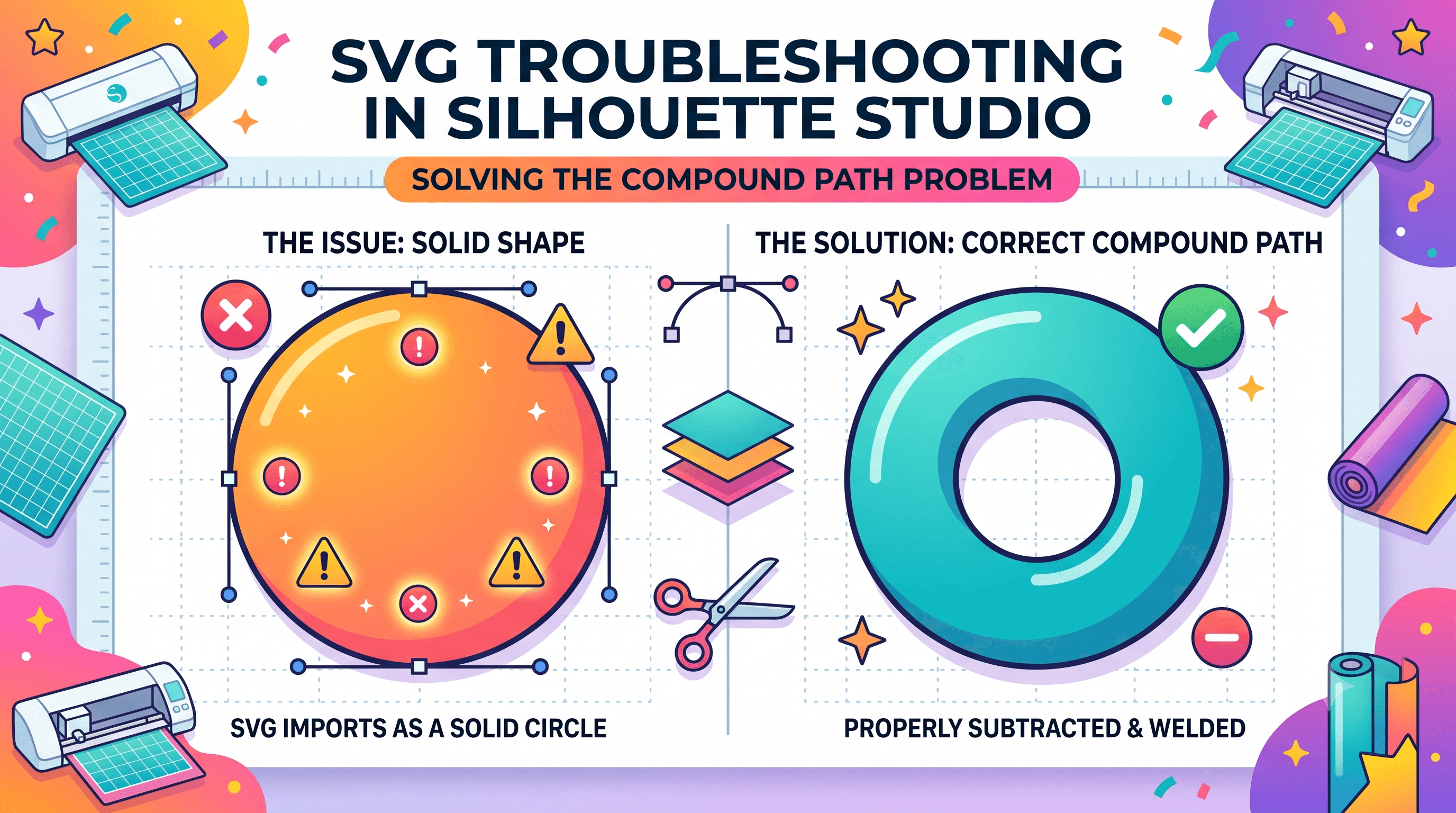
Why Your SVG Won't Cut in Silhouette Studio: The Compound Path Problem No One Warns You About
If your SVG won't cut in Silhouette Studio, or you're getting a strange import error the moment you drop the file in, the culprit is almost always a compound path. Not a corrupted file, not a bad export, not your machine acting up. Once you know what to look for, it's a five minute fix, and you'll probably never get stuck on it again.
What a Compound Path Actually Is
A compound path is just multiple shapes grouped into a single path, where one shape cuts a hole in another. Think of a donut. The outer circle and the inner circle live in the same path, and the inner one tells the software this part is a hole, not solid. Without that relationship, you'd just have a filled circle sitting on top of another filled circle, with no hole at all.
Letters like O, A, and B work the same way. The counter (the enclosed space inside the letter) is a separate shape nested inside the outer letterform, and the two are stored as one compound path so the letter reads correctly when filled. Design programs like Illustrator, Inkscape, and Canva build fonts and icons this way constantly, and most of the time you never even notice it's happening.
This is normal and useful for design software. It's also exactly where things go wrong once that file lands in a cutting program. Silhouette Studio doesn't always read compound paths the same way the program that created them did, and that mismatch is where "why won't my SVG cut right" problems usually start.
It's also worth knowing that not every SVG issue is a compound path issue. Sometimes a file has too many nodes, sometimes it was exported with settings meant for the web instead of cutting machines, and sometimes the file itself is just malformed. Compound paths, though, are the single most common reason a design looks perfect on your screen and then cuts completely wrong.
How Compound Paths Break Your Cut
When Silhouette Studio doesn't interpret a compound path correctly, the hole disappears. Your letter O cuts as a solid blob instead of a ring. A layered design cuts as one fused shape instead of separate pieces you can weed, layer, and stack the way you planned.
You'll usually notice one of these:
- Text with counters (O, A, D, R, B) filling in solid instead of showing the hole
- Multiple layers of a design cutting as a single outline, so pieces that were supposed to sit apart come out fused together
- Registration marks vanishing or shifting after import, throwing off Print then Cut alignment
- An import error or warning that doesn't explain what's actually wrong, just that something failed
- A design that looked fine in the preview thumbnail but cuts differently once it hits the mat
This is the kind of thing that catches even experienced crafters off guard, because the file often looks completely fine in the layer panel. You don't see the broken relationship until you actually cut it, or until you release the path and watch pieces jump apart in ways you didn't expect.
This is a common enough issue that it has a name and a known fix. It's also the exact problem CutMagic's SVG Fixer was built to catch, since path structure errors like this are one of the most frequent reasons a clean looking SVG fails the moment it hits a cutting machine.
Diagnose and Fix the Path Before You Cut
Before you troubleshoot anything else, run this workflow. It takes about five minutes and walks you from spotting the problem all the way through to a clean, ready-to-cut file.
If you're regularly buying or downloading SVGs and running into this pattern, it's worth understanding how these files get created in the first place, since a lot of compound path issues trace back to the export step long before the file ever reaches you.
Doing this by hand takes a few extra minutes, but it's a skill worth having since you'll run into it often, especially with layered or hand-drawn designs. If you'd rather skip the manual check every time a new file comes in, CutMagic's SVG Fixer runs this same cleanup automatically, simplifying overlapping paths and repairing compound path issues before the file ever reaches your cutting mat.
The Two Question Test
Next time an SVG won't cut in Silhouette Studio, skip the guesswork and ask two questions. Are pieces stuck together that should be separate? Release the compound path. Are pieces separate that should be one clean shape? Merge them.
Most Silhouette Studio SVG troubleshooting comes down to one of those two answers, and once you've done it a few times it becomes second nature. Run the check before you cut, not after you've wasted a sheet of vinyl or a sold-out print of cardstock, and you'll catch the problem in the time it takes to open the file. That one habit will save you more frustration than almost any other fix on this list.