
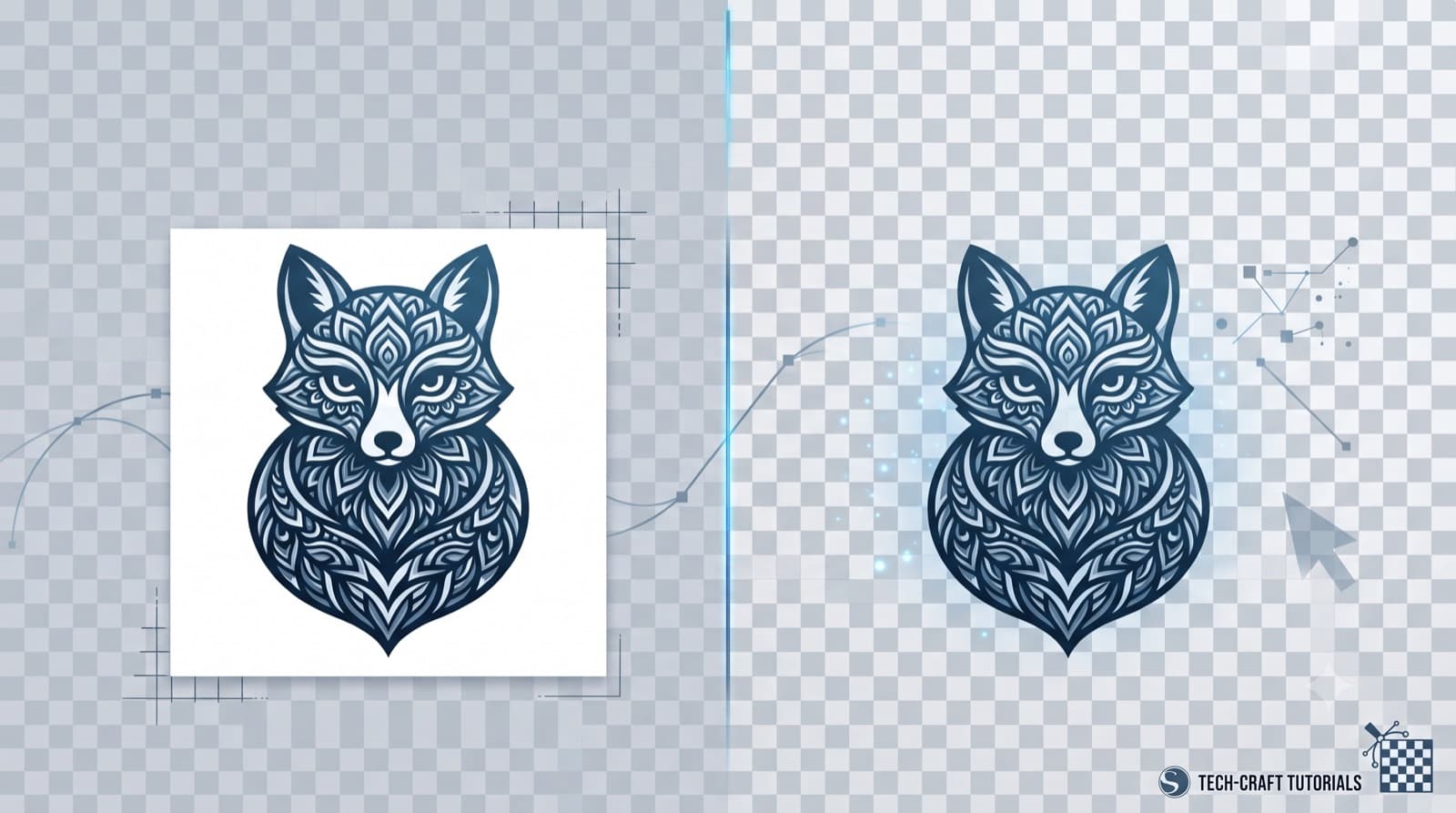
PNG vs SVG in Silhouette Studio: Why Your Transparent Background Turns Solid White
You saved your PNG with a transparent background, but the moment it lands in Silhouette Studio, there's a solid white box around your design instead. This is one of the most common PNG background not transparent issues in Silhouette, and it almost always comes down to how the file was saved or how the software reads it, not a broken file.
A white background after import is a transparency and trace issue, not a sign of a broken file. A proper trace and detach pass before you cut will clear it up in most cases.
Why PNG and SVG Handle Transparency Differently
A PNG's transparency lives in the pixels themselves. Every pixel carries an alpha channel that tells software how see-through it should be. An SVG works differently. There's no pixel grid at all, just vector paths. Anything not drawn as a shape simply isn't there.
That distinction matters when you're cutting. Silhouette Studio needs to know, with total clarity, what's shape and what's background. A PNG can lose that distinction on import depending on how it was exported or how the software interprets the file. An SVG never has this problem, because there's nothing to lose. The background was never a pixel in the first place.
Common Reasons a PNG Background Shows Solid White
If you're dealing with PNG background not transparent issues in Silhouette, it usually traces back to one of three causes:
- The file was flattened somewhere along the way. Re-saving a PNG through certain software, or even some screenshot tools, strips the alpha channel and bakes in a solid background.
- Silhouette Studio imported it as a flat raster image. Sometimes the software doesn't recognize the transparency layer on import, and it displays the full pixel grid, background included.
- The background was never fully transparent. It might have been a very light color, close to white but not actually transparent, so once it's imported, it just reads as a solid fill.
Checking which of these applies is the fastest way to fix the problem instead of guessing.
How to Remove the Background and Detach It Properly
Removing the visible white box is only half the job. Trace and Detach is the step that actually separates your new vector outline from the original image sitting underneath it, and it's the step people skip most often.
Skip this step, and your design still behaves like it has a background attached, even though visually it looks clean. That's because the raster image is still there, just hidden behind the trace.
When a Solid Background Causes Print and Cut Registration Failures
Here's where a white background stops being a visual annoyance and starts being a functional one. A solid box around your design can throw off print and cut registration if it overlaps or crowds the registration mark zone. The machine's sensor is trying to read clean marks against a background that's now bigger, or positioned differently, than it expects.
This is a real print and cut registration failure scenario tied directly to background handling. It isn't purely cosmetic. It affects whether the cut lines up with the print at all.
Starting With a File That's Already Clean
Tracing and detaching a background by hand works, but it's a step you end up repeating on every single PNG that comes through. If you're running a lot of files, that adds up fast.
The Takeaway
A white background showing up after import is a transparency and trace issue, not a sign your file is broken. Most of the time, a proper trace and detach pass before you ever get to the cut step clears it up completely. Once you know which of the three causes you're dealing with, fixing it takes a couple of minutes, not a full re-export from scratch.