
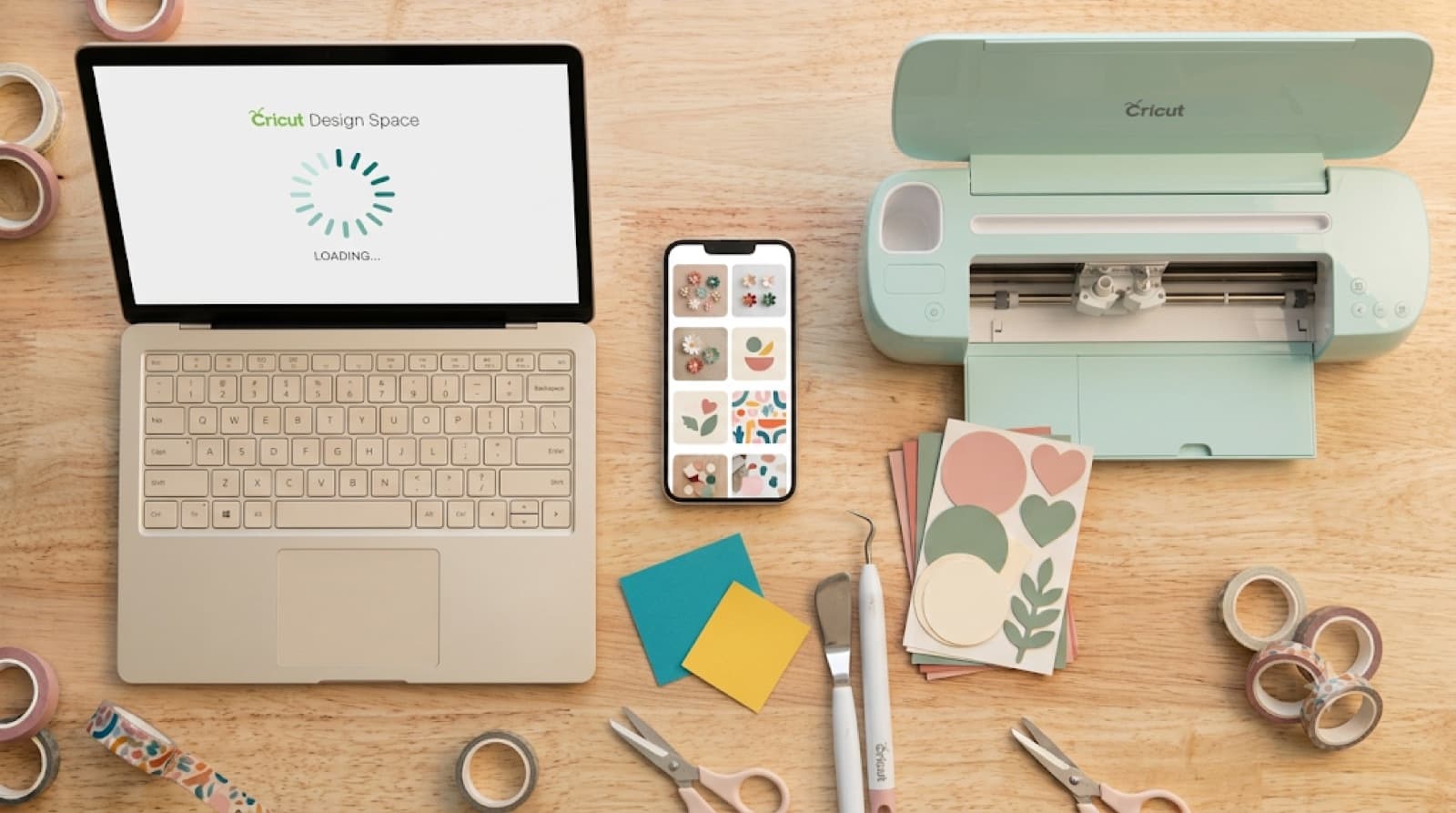
Cricut Design Space Not Working: Every Fix That Actually Helps
Cricut Design Space not working can mean five completely different things. It might refuse to open, freeze on the loading screen, crash halfway through a project, reject your file on upload, or lock you out the second you lose wifi. Each one has a different cause and a different fix.
Find your exact symptom below and skip the generic "just reinstall it" advice.
Cricut Design Space Not Working? Match Your Symptom First
Before you start troubleshooting, figure out which failure you're actually dealing with. An app that won't launch at all is a different problem than an app that opens fine but freezes once you try to upload something.
Here's the quick map: won't open at all, stuck on the loading screen, crashes mid-project, upload fails, or won't work offline. Jump to the section that matches what's happening on your screen right now.
One thing worth knowing up front: this is almost always a software problem, not a machine problem. Design Space does its work on your computer or device before it ever talks to your Cricut, so a machine sitting there unpowered has no bearing on whether the app opens or loads.
Design Space Won't Open At All
If Design Space never even gets to the loading screen, the app itself is the problem, not your project or your file.
The most common causes are a corrupted install, an outdated version that hasn't kept pace with a recent update, or security software quietly blocking the app from reaching Cricut's servers. Antivirus tools and some VPNs are frequent culprits here, especially after a Windows or macOS update changes how they handle background connections.
Work through these in order:
Most launch failures resolve at step one or three. If you're still stuck after all four, the issue is likely account-related rather than app-related, and a password reset is worth trying next.
Disabling protection is a test, not a fix. Once the app opens, switch your security software back on and add design.cricut.com as an exception instead.
Not if they're saved to the cloud. Cloud projects stay tied to your Cricut account no matter what happens on your computer. Only projects stored locally are at risk.
Design Space Stuck on Loading Screen
This is different from Design Space not opening. Here, the app launches fine but hangs on the spinner, or it loads partway and then freezes.
The usual suspects are a corrupted browser cache if you're using the web version, a browser extension interfering with the connection (ad blockers are the biggest offender), or a canvas so packed with layers and images that it's choking on load.
Try these:
- Clear your browser's cache and cookies, then reload Design Space.
- Open Design Space in an incognito or private window. If it loads cleanly there, one of your extensions is the problem. Disable them one at a time to find the culprit.
- Whitelist design.cricut.com in your ad blocker's settings.
- If you're on the browser version, try the desktop app instead, or vice versa. They don't always hit the same snags.
Does Design Space work on your phone but not your computer? That points to a device-specific issue, not your Cricut ID. It's usually a browser, cache, or security software conflict on the computer.
If the freeze happens specifically after uploading an SVG rather than on general launch, that's usually a file problem, not a loading problem. Check your file before you keep clearing caches.
Design Space Crashes Mid-Project
A crash that happens after you've started working, not on launch, almost always traces back to what's on your canvas.
Overly complex SVGs are the number one cause. A file with thousands of nodes (common in auto-traced images) forces Design Space to do a lot of math every time you move or resize it, and eventually it just gives up. Too many layers stacked on one canvas, or a computer running low on available memory, compound the problem.
What actually works:
- Simplify the file before you upload it. Fewer nodes means less strain on the app.
- Break large, multi-layer projects into smaller canvases instead of loading everything at once.
- Save your work every few minutes rather than waiting until you're done.
- Restart the app between big projects instead of leaving it running for hours.
Design Space crashes don't always give a warning. Save before you resize a big image, add a new layer, or ungroup a complicated design.
If you're not sure whether node count is actually your problem, our guide on how to fix the SVG file too complex error walks through how to check and simplify a file before it crashes your project.
SVG or Image Upload Fails
Upload failures feel like a Design Space problem, but they're usually a file problem wearing a Design Space costume.
The file might not actually be a valid SVG despite the extension, the code inside it could be malformed from a bad export, or it might simply exceed Cricut's node limit. None of these show up until you try to upload, which is why they're so frustrating to diagnose.
Steps to fix it:
- Confirm the file is genuinely an SVG and not a renamed file of a different type.
- Re-export it from the original design software using standard SVG settings rather than web-optimized ones.
- Check the node count before re-uploading. If it's in the thousands, simplify it first.
Upload failures have more edge cases than any other symptom on this list. For the complete list of causes, see our breakdown of why your SVG won't upload to Cricut.
If you've already tried re-exporting and simplifying and the file still won't cooperate, CutMagic's SVG Fixer repairs an uploaded SVG so it's compatible with Design Space. That beats manually hunting through Inkscape's node editor for a problem a repair pass can find in seconds.
Design Space Won't Work Offline
Design Space's offline mode is more limited than it sounds. The app needs to verify your account with Cricut's servers periodically, even when you've enabled offline access, and any cloud-stored fonts or images simply won't render without a connection.
To avoid getting caught out mid-project:
- Sign in while you still have a connection so the session gets cached locally.
- Download or sync any projects you'll need before you go offline.
- Know which elements in your project are cloud-only. Cricut-provided fonts and images from the library are the most common ones that vanish offline.
If a saved project is suddenly missing images once you're offline, that's almost always a cloud-asset issue rather than a bug.
Same Problem on Silhouette Studio?
If you run both machines, you'll notice Silhouette Studio has its own version of these headaches, just with different names for the same root causes.
The biggest one to rule out first: the free Basic Edition of Silhouette Studio can't open SVG files at all. You need Designer Edition or higher. If you're troubleshooting both apps on the same computer, check your edition before you blame the file.
Back Up and Running? Dial In Your Cut Settings
Once Design Space is behaving again, the next thing that wastes material is the wrong cut settings. Check them before your first cut of the day.
Quick Fix Cheat Sheet
Save this for the next time Design Space acts up:
Fixing Cricut Design Space Not Working: The Takeaway
Most "Design Space not working" reports fall into one of these five buckets, and the fix is almost never a mystery once you know which one you're dealing with.
Before you upload your next file, check its node count and structure. That 30-second check catches the problems Design Space would otherwise reject, or crash on, without any warning.