
Why Your SVG Won't Upload to Cricut Design Space (And the 5-Second Fix)
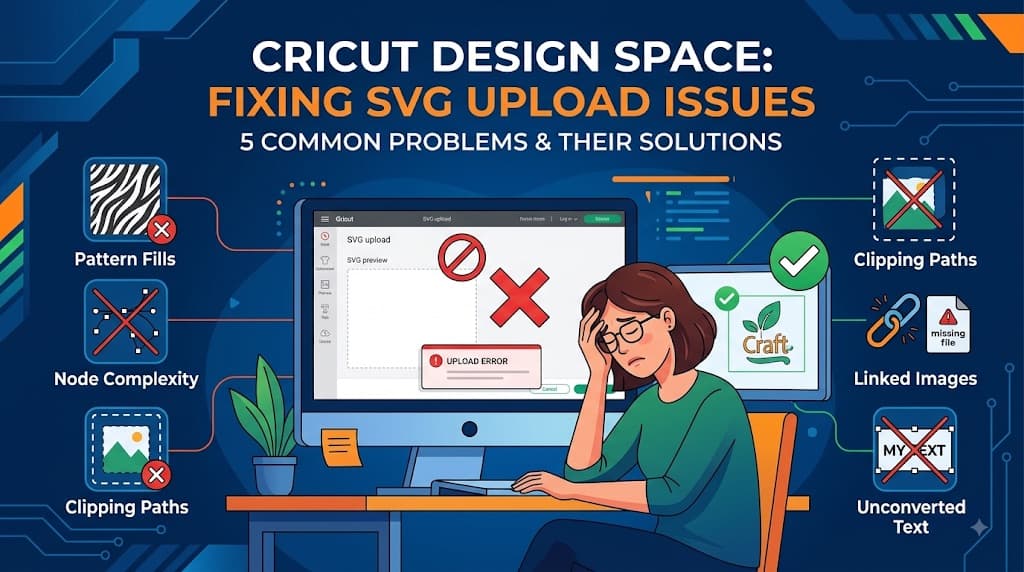
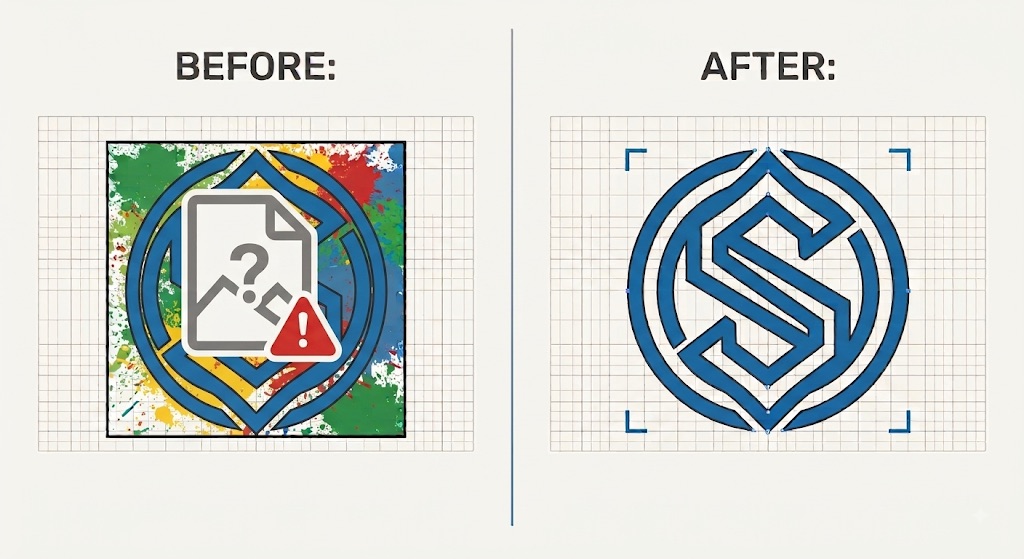
Your project is due tonight. You hit upload in Cricut Design Space and the spinner just fails, or worse, your design shows up as a blank white box where your artwork should be. If your Cricut SVG is not uploading, it almost always comes down to one of five specific problems in the file itself, and most take under a minute to fix once you know which one you're dealing with.
The 5 Reasons Your SVG Won't Upload to Cricut Design Space
Design Space rejects or mangles SVGs for one of five reasons: pattern fills it can't render, too many nodes for it to process, clipping paths it can't interpret, linked images that break on upload, or text that was never converted to paths. Any one of these can cause a blank upload, a failed upload, or a design that looks right in your preview and wrong the moment it lands in Design Space. Here's how to spot each one and fix it.
Pattern Fills Are Uploading as a Blank or Black Box
Design Space was built to read flat, solid colors. It has no rendering engine for gradients, textures, or pattern fills, so when it hits one, it doesn't error out gracefully. It either shows the shape as solid black or drops it entirely, leaving you staring at a blank canvas where a full design used to be.
This is the most confusing failure mode because the file looks completely normal in Illustrator or Inkscape. Open the same SVG in a text editor and you'll usually find a <pattern> or gradient fill definition sitting inside a <path> element. Design Space simply skips over it.
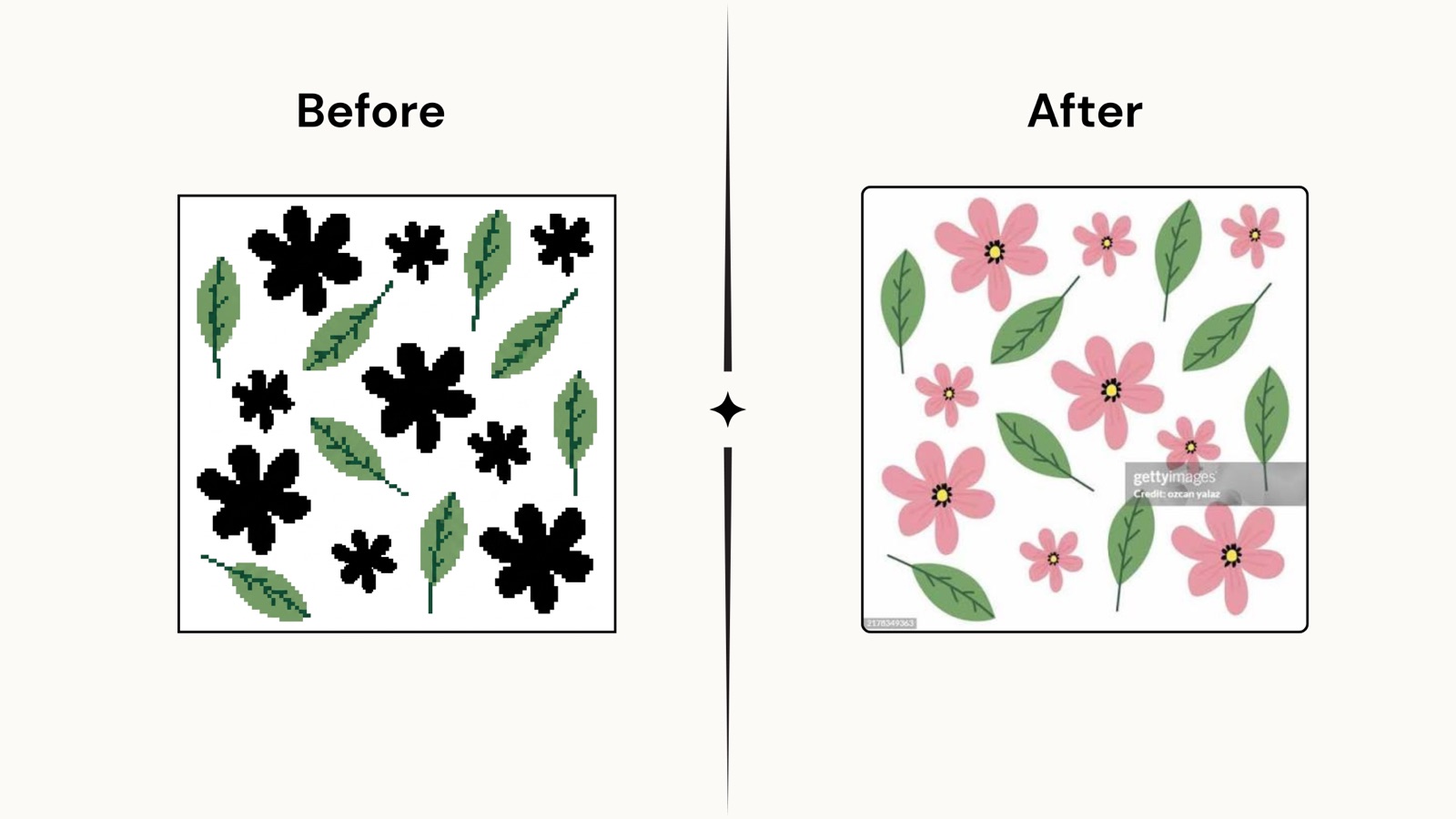
CutMagic's SVG Fixer catches this automatically and converts pattern fills to clean solid colors before you ever reopen Design Space, so the fix happens in the file rather than in a second round of manual editing.
Too Many Nodes Is Why Your SVG Upload Failed
Every curve in an SVG is built from nodes, the small anchor points that define where a path bends. A basic star might have 10 nodes. A photo auto-traced into a vector can easily have several thousand. Troubleshooting guides across the Cricut community commonly put the practical ceiling somewhere around 5,000 nodes before Design Space starts slowing to a crawl or throwing the "file too complex" error, though Cricut hasn't published an exact figure. Past that point, the app is trying to track thousands of tiny coordinates just to render a preview.
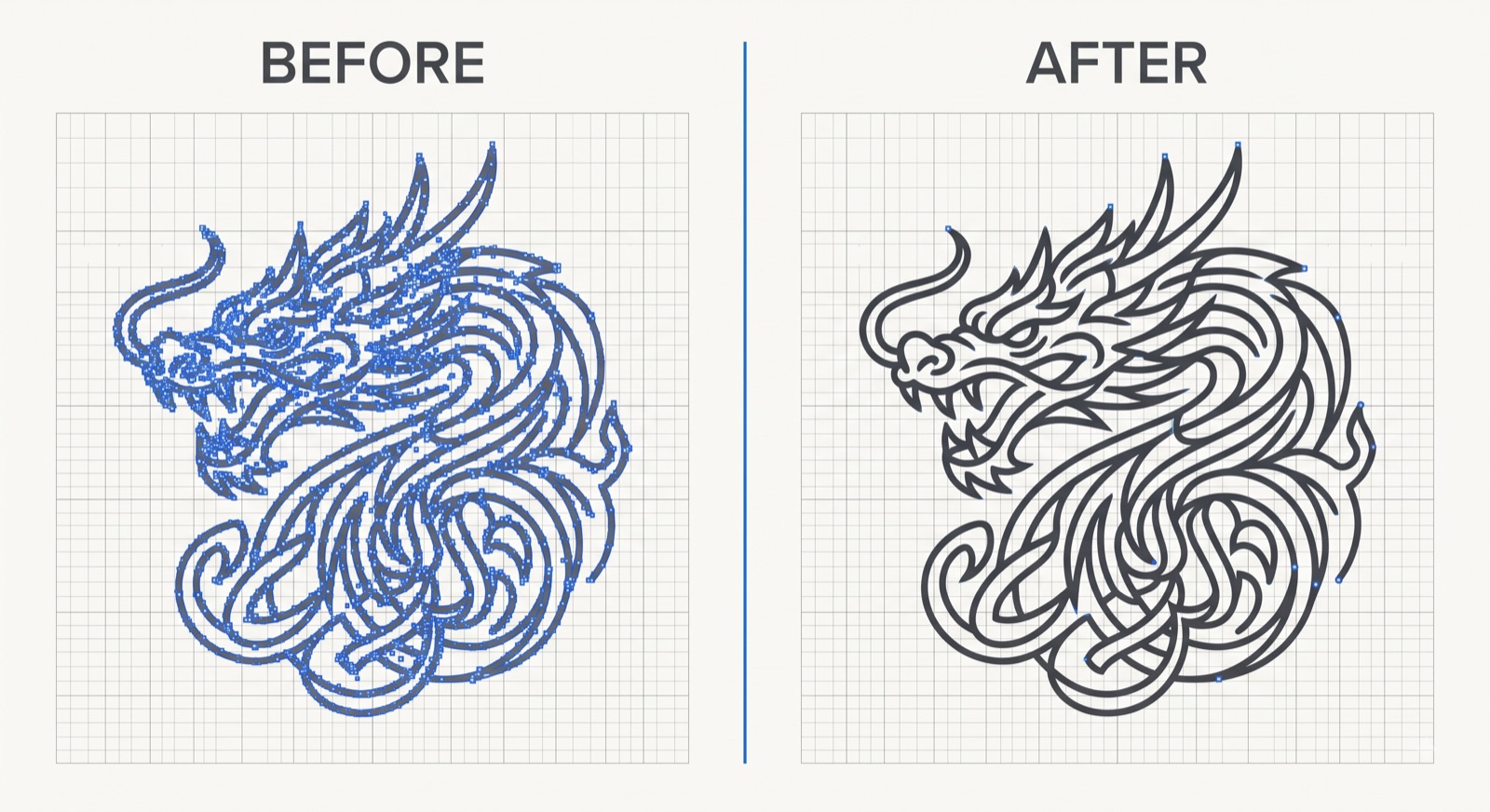
Compound paths are a common node-count trap. If you're not sure whether an "attach" or "weld" step doubled your node count without you noticing, compound paths are a common node-count trap worth checking before you blame the whole file.
Clipping Paths Are Confusing Design Space's Renderer
A clipping path is an invisible shape that hides part of a design, the kind of thing Illustrator uses constantly to crop artwork without permanently deleting anything. Design Space doesn't interpret clip masks the way design software does. Instead of hiding the intended area, it often either shows the full unclipped shape or drops the masked layer from the preview entirely, which is why your file uploads but looks nothing like what you designed.
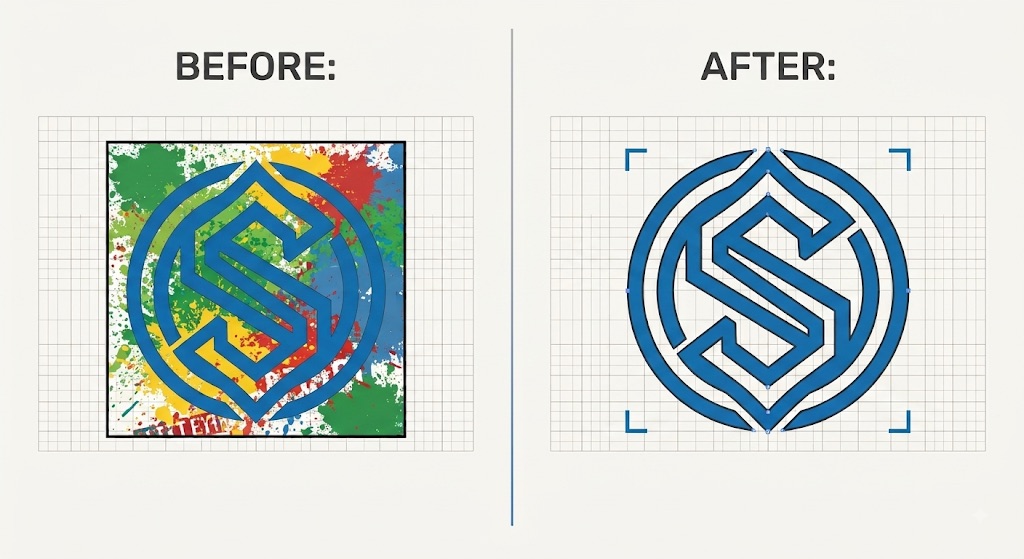
If your cuts have ever come out with unexpected small gaps, path issues like this are also behind cut gaps that show up after the fact is worth a read too.
Linked Images Make Your Design Disappear After Upload
There's a difference between an image that's embedded directly in the SVG's code and one that's linked, meaning the SVG file just points to an image file sitting somewhere else on your computer. Design software can display a linked image fine because it can still find the original file. The moment you upload that SVG to Design Space, the link breaks. Design Space has no access to your file system, so it just shows a blank spot or a broken-image icon where the artwork should be.
Unconverted Text Is Why Letters Vanish or Turn Into Boxes
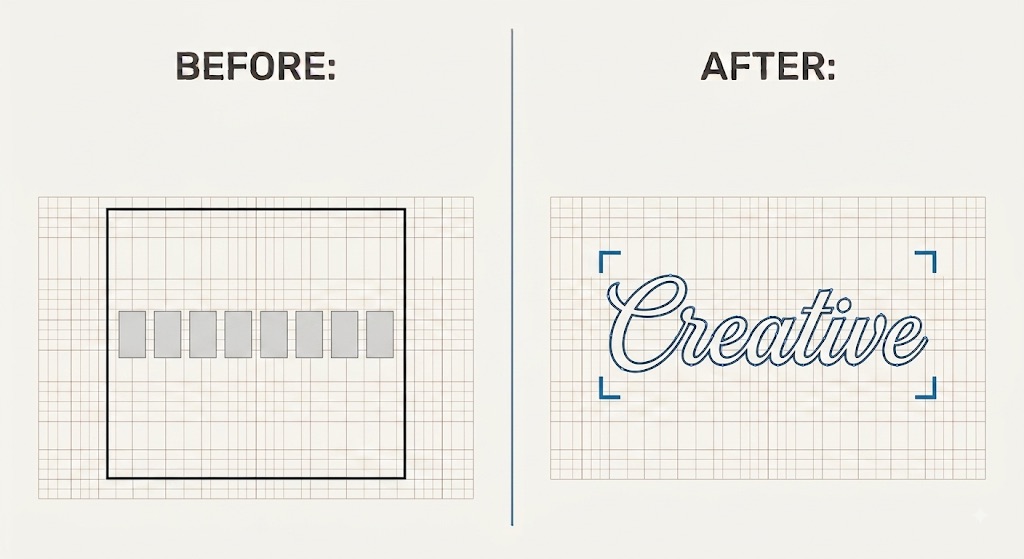
Live, editable text in an SVG references a font by name. If that exact font isn't installed on whatever computer or server renders the file, most software substitutes a fallback so you barely notice. Design Space doesn't do that gracefully. Unconverted text can show up as empty boxes, a totally different font than intended, or vanish from the design altogether, since Design Space has no font-matching system to fall back on.
Check Which One Broke Your File in 30 Seconds
Rather than guessing which of the five it is, paste your file in and let something check it for you.
CutMagic's free SVG Analyzer scans your file for node count against the recommended ceiling, path complexity, embedded versus linked images, and unconverted text, then returns a pass, warning, or fail on each check, all in your browser with nothing uploaded to a server permanently.
Once you know exactly which issue flagged, the SVG Fixer is where it actually gets repaired: pattern fills get converted to solid colors, node counts get simplified, clipping paths get flattened, all without you opening a second app or relearning Inkscape at 11pm.
The Takeaway
Next time an upload fails or shows up blank, don't just re-export and hope. Run the file through the analyzer first so you know exactly which of the five issues you're dealing with before you touch anything. It's a lot faster than the guess-and-reupload loop most people end up in.
One honest limitation worth knowing: fixing these five issues doesn't override Design Space's other rules. Your file still needs to stay under Design Space's recommended file size (Cricut suggests keeping SVGs well under 5MB for reliable performance), so a repaired file that's still enormous can hit a separate wall. Check size alongside structure, not instead of it.