
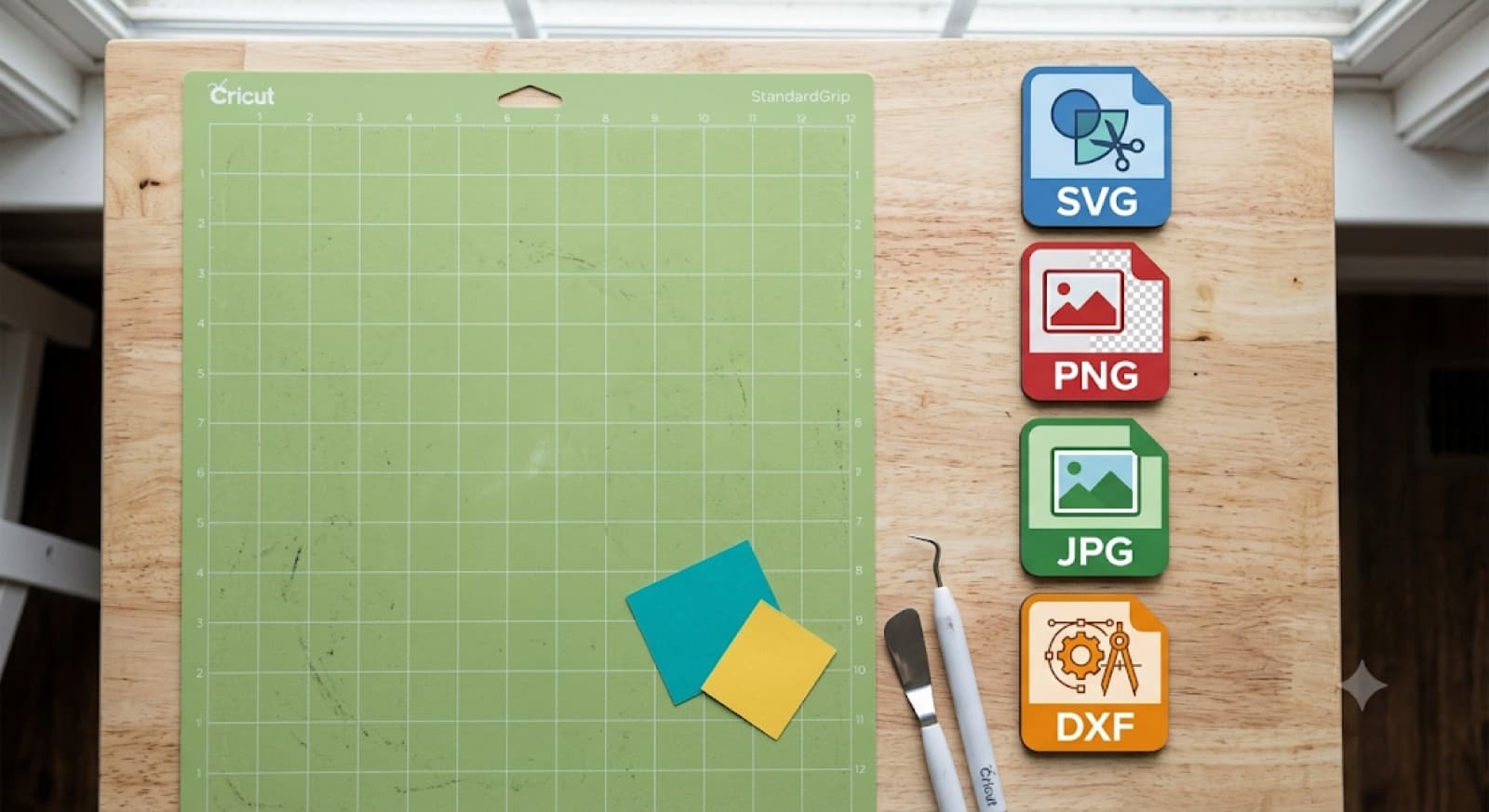
What File Format Does Cricut Use? SVG vs PNG vs JPG vs DXF
Cricut cuts SVG and DXF files. PNG and JPG only work through Print Then Cut, which prints the image first and cuts around its outline. It never actually cuts along the artwork itself.
If you're not sure which one you're holding, SVG is the safe default, and DXF is the fallback if you're on Silhouette Studio's Basic Edition.
That's the short version. Here's what actually separates these formats, and why uploading the wrong one is the reason so many "why won't this cut" problems start in the first place.
Cricut File Format Comparison: SVG, PNG, JPG, DXF, GIF, BMP
| Format | Can Cricut cut it? | Print Then Cut support | Resize quality | Best used for |
|---|---|---|---|---|
| SVG | Yes, natively | Not needed | Scales to any size, no blur | Cut lines, layered designs, vinyl, HTV |
| DXF | Yes, natively | Not needed | Scales cleanly, fewer style features than SVG | Silhouette Basic Edition, CAD-style cut lines |
| PNG | No | Yes | Loses sharpness past its native resolution | Detailed images, transparent backgrounds, Print Then Cut |
| JPG | No | Yes | Loses sharpness past its native resolution | Photos, Print Then Cut, no transparency |
| GIF | No | Limited, low resolution | Poor past native size | Simple flat-color images only, rarely the right choice |
| BMP | No | Yes, but large file sizes | Loses sharpness past its native resolution | Legacy files with no other format available |
The two columns that matter most are the first and the third. If a format can't be cut natively, it's a Print Then Cut format, full stop.
And if resize quality is poor, that's a warning. Scaling the design up for a bigger project will blur or pixelate the edges.
Why SVG Is the Format Cricut Actually Cuts
SVG stands for Scalable Vector Graphic. Instead of storing an image as a grid of colored pixels, it stores a set of mathematical paths, the literal lines your Cricut blade follows. That's why an SVG looks identical at business-card size and at poster size, while a PNG blown up to the same dimensions turns soft and blocky.
Design Space treats SVG as its native cut format for a reason. Every layer, every cut line, and every color group in an SVG maps directly to something Design Space can separate, resize, and send to the blade. PNG and JPG don't carry any of that path information, so Design Space has nothing to cut along, only pixels to print.
If you're building an SVG from scratch rather than converting an existing image, the process is different enough that it's worth its own walkthrough. Here's a full guide to make SVG files for Cricut at any skill level, from hand-drawn designs to AI-generated ones.
PNG Files: When Print Then Cut Is the Right Call
PNG has one job Cricut actually needs it for: printing detailed, full-color images with a transparent background, then cutting around the printed shape using registration marks. That's Print Then Cut, and it's the correct workflow for stickers, labels, and photo cutouts where the interior detail matters more than clean cut lines.
Where people get tripped up is expecting a PNG to behave like an SVG. Upload a PNG and Design Space will only offer to print it, not cut along its shapes, because there's no path data telling the blade where to go.
A PNG that uploads without errors isn't a PNG that will cut. If your project needs an actual cut line rather than a printed outline, the PNG needs to become an SVG first.
That conversion is usually the fastest fix. A checklist of free PNG to SVG converters that actually work with Cricut helps you get a clean result instead of a file that throws errors on upload.
JPG Files: The Same Rule as PNG, With One Extra Catch
JPG works exactly like PNG for Cricut purposes. It's a Print Then Cut format only, never a native cut format. The blade has nothing to follow in a JPG any more than it does in a PNG.
The extra catch is transparency. PNG supports a transparent background, JPG doesn't. Upload a JPG with what looks like a transparent background in your photo editor, and Design Space will show it with a solid white or colored fill instead.
That matters for anything you're layering over another material, since a white box around your design isn't usually what you want on a shirt or a mat.
If you're working from a photo or a JPG logo and need real cut lines, converting to SVG is the same move as with PNG. Here's a full comparison of three methods for converting any image to SVG for Cricut, including which one to pick based on how much manual cleanup you're willing to do.
DXF: The Format Silhouette Basic Edition Users Need
DXF is a vector format like SVG, and Cricut cuts it natively. It shows up most often for a specific reason: Silhouette Studio's Basic Edition doesn't support SVG import at all. DXF becomes the workaround, not the upgrade.
This is the same root problem behind a lot of "Silhouette Studio won't open my file" complaints. It's rarely that the software is broken. Basic Edition is being handed a format it was never built to read.
Switching the export to DXF, or upgrading to a Silhouette Studio tier that reads SVG, solves it. A full breakdown of why Silhouette Studio won't open or import certain files, on both Mac and Windows, walks through both fixes depending on which one applies to you.
Both are native cut formats. SVG is the more feature-complete option, while DXF is mainly a fallback for Silhouette Basic Edition because it strips out some layer and color data.
Worth knowing before you rely on DXF: it strips out some things SVG keeps, like color fill data and certain layered groupings. A DXF will cut fine, but if your design depends on multiple colors staying organized as separate layers, double check that after export. It's a solid fallback, not a full replacement for SVG.
GIF and BMP: Rarely the Right Choice, But Here's When
GIF and BMP round out the list mostly because people occasionally get handed one and aren't sure what to do with it. Neither is a cut format. Both go through Print Then Cut if they're usable at all.
GIF is limited to a small color palette and low resolution, which makes it a poor source for anything with fine detail or gradients. BMP holds full color and resolution but produces large file sizes for very little benefit over PNG.
If a file arrives in either format, the practical move is the same one as PNG or JPG. Convert it to SVG if you need a real cut line, or accept its limits if Print Then Cut is all you're after.
What About PDF Files?
PDF isn't a native cut format for Cricut. A PDF may contain vector paths internally, but Design Space doesn't read it as a cuttable file the way it does SVG or DXF.
If a design only came to you as a PDF, convert it to SVG first. Then Design Space has real paths to work with instead of a document it can't cut.
How to Check What Format You're Holding
Before you upload anything, a quick check saves a lot of "why won't this cut" frustration. This takes a few minutes and works the same for any file that lands in your downloads folder.
Turning Any File Into a Cricut-Ready SVG
Once you know what format you're holding, the fix for "wrong format" problems is almost always the same: get it into SVG. Doing that by hand usually means a vector editor, a trace tool, and a fair amount of cleanup on messy edges.
CutMagic's SVG Creator handles that conversion directly. Upload the PNG, JPG, or rough image, and it generates an SVG built to import cleanly into Design Space or Silhouette Studio, without the stray nodes or broken paths that usually come out of free online tracers.
That's the shortest path from "I have the wrong file" to "this is ready to cut."
Next Up: Dial In Your Cut Settings
A correct file format gets you to the cut. The settings decide whether it actually goes through your material cleanly.
Keep This Table Handy
Knowing which file format Cricut uses solves most upload problems before they start. SVG for cutting, DXF as the Silhouette Basic fallback, and PNG or JPG only when Print Then Cut is the plan.
Bookmark the comparison table above for the next time a file lands in your downloads folder and you're not sure what Cricut will do with it.