
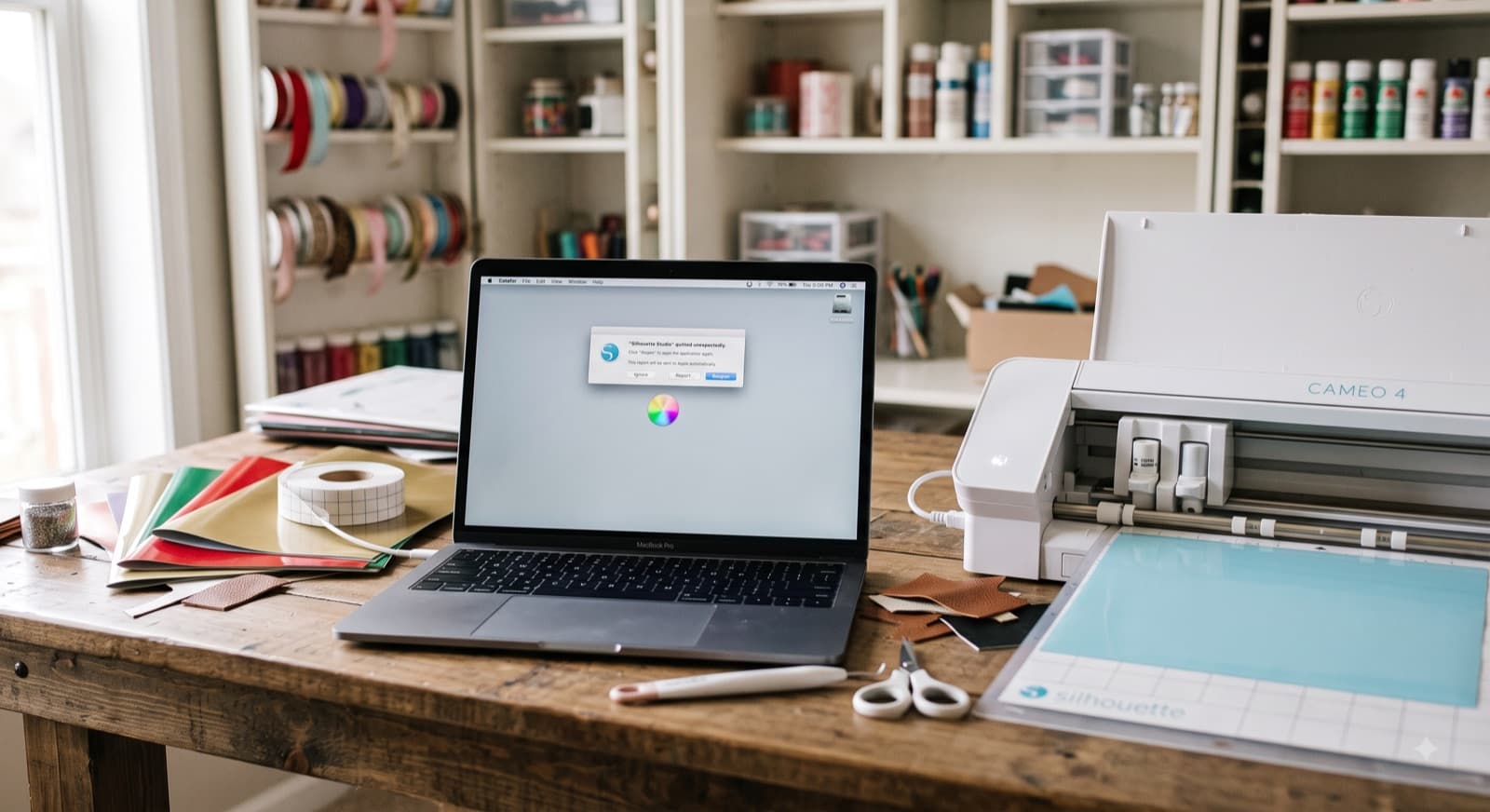
Silhouette Studio Won't Open or Won't Import Your SVG: The Real Fix for Each
Silhouette Studio won't open, or it opens fine and then ignores the SVG you just downloaded. On Mac especially, those get treated as the same complaint when they're actually two different problems with two different fixes. One is a launch issue. The other is a file issue, and it usually comes down to which edition of Studio you're running, not anything wrong with your computer.
This guide splits the two apart so you can go straight to the fix that matches what's happening on your screen, on Mac or Windows.
Is Silhouette Studio Not Opening At All, or Not Opening Your File?
If you double-click the Silhouette Studio icon and nothing happens, or it bounces in the dock and then quits, that's a launch problem. Skip to the Mac or Windows fix section below.
If Studio opens normally, and the problem only shows up when you try to bring in a specific SVG file (it won't import, or it imports as a blank box), that's a different issue entirely, and it's almost always about which edition of Studio you have. Jump to the SVG import section instead.
Fixing Silhouette Studio Won't Open on Mac
Work through these in order. Each one takes a couple of minutes.
Silhouette Studio still doesn't have a native Apple Silicon version. It runs through Apple's Rosetta 2 translation layer, and if Rosetta isn't installed, Studio simply won't launch. macOS usually prompts you to install it automatically the first time you open the app. If that prompt never showed up, open Terminal and run:
/usr/sbin/softwareupdate --install-rosetta --agree-to-license
Then try launching Studio again.
Fixing Silhouette Studio Won't Open on Windows
- Close any leftover Silhouette process. Open Task Manager (Ctrl+Shift+Esc), check the Processes tab, and end anything still running in the background.
- Uninstall the app from Apps & Features, then restart your computer before doing anything else.
- Clear out leftover folders. Check
C:\ProgramData\Silhouette America\, along with the AppData\Local and AppData\Roaming folders for Silhouette. These can hold onto a corrupted setting even after a normal uninstall. - Reinstall from the current official installer, not an old download.
If Studio still won't launch after this, try temporarily disabling antivirus or firewall software during install. Some antivirus tools flag Silhouette's installer as suspicious and quietly block parts of it.
Silhouette Studio Opens, But Your SVG Won't Import or Render
If Studio launches fine and the problem is only with a specific file, start here: the free Basic Edition of Silhouette Studio cannot open SVG files at all. This isn't a bug or a glitch, it's a licensing restriction. SVG import is locked behind the Designer Edition upgrade or higher. If you're on Basic and drag an SVG in, nothing will happen, no matter how many times you try.
Check your edition under Help > About if you're not sure which one you're running.
If you're already on Designer Edition or Business Edition and an SVG still won't render:
- Unzip it first. Most SVGs from marketplaces arrive inside a .zip folder, and Studio can't open the file while it's still zipped.
- Ungroup it after import. Right-click the design and choose Ungroup before trying to edit individual pieces. A lot of "this file looks broken" reports are actually just a grouped file that hasn't been separated yet.
If you're on Basic Edition and don't want to pay for the upgrade, DXF is the real workaround. Basic Edition opens DXF files natively, and most SVG sellers include a DXF version in the same download. It's a rougher file (no color layers, more manual cleanup), but it opens.
And if you've cleared all of that and the file still won't behave, the problem might be the file itself. The same node-heavy files that choke Cricut Design Space cause the exact same import slowdown here, since both programs are trying to process the same bloated path data.
Getting an SVG That Opens Clean the First Time
If you're on Designer Edition or Business Edition, importing SVGs works, but a messy file will still test your patience. Auto-traced designs, mandalas, and anything pulled from a photo can carry thousands of extra anchor points, pattern fills that show up as black boxes, or text that wasn't converted to paths before export. Studio has to work through all of that on import, which is where the freezing and blank-canvas imports usually come from.
CutMagic's SVG Fixer runs an SVG through those fixes before it ever reaches your software: flattening pattern fills into solid colors, cutting node counts down, and converting text to paths so nothing shows up missing. A file that's already been cleaned up this way imports and ungroups in Studio without the usual wait, since there's nothing left for the software to choke on.
Fix your SVG using CutMagic's SVG Fixer now.
Silhouette Studio Update Won't Install
This one's usually simpler than it looks. The in-app updater fails silently more often than it should, so Studio just sits on the old version with no error message telling you why. Skip the auto-updater. Download the current version manually from Silhouette's official site and run the installer directly. It'll overwrite your existing install and pull in whatever the auto-updater was failing to grab.
FAQ
Can Silhouette Studio Basic open SVG files?
No, Basic can't open SVGs. It's a licensing restriction, not a bug. SVG import needs Designer Edition or higher. Check your edition under Help > About.
Why is Studio not opening after an update?
Usually because the in-app updater fails silently. Skip it. Download the current installer from Silhouette's site and run it directly, it'll overwrite your old install.
Does Studio run on Apple Silicon?
No. On M-series Macs it runs through Rosetta 2. If it's not installed, run this in Terminal:
/usr/sbin/softwareupdate --install-rosetta --agree-to-license
Wrapping Up
Two different problems, two different fixes. If Studio wouldn't launch at all, it was almost always a permissions or cache issue, not something wrong with your Mac or PC. If it opened fine but ignored your SVG, it came down to your edition, not a broken file. Either way, you shouldn't need a support ticket to get back to cutting.