
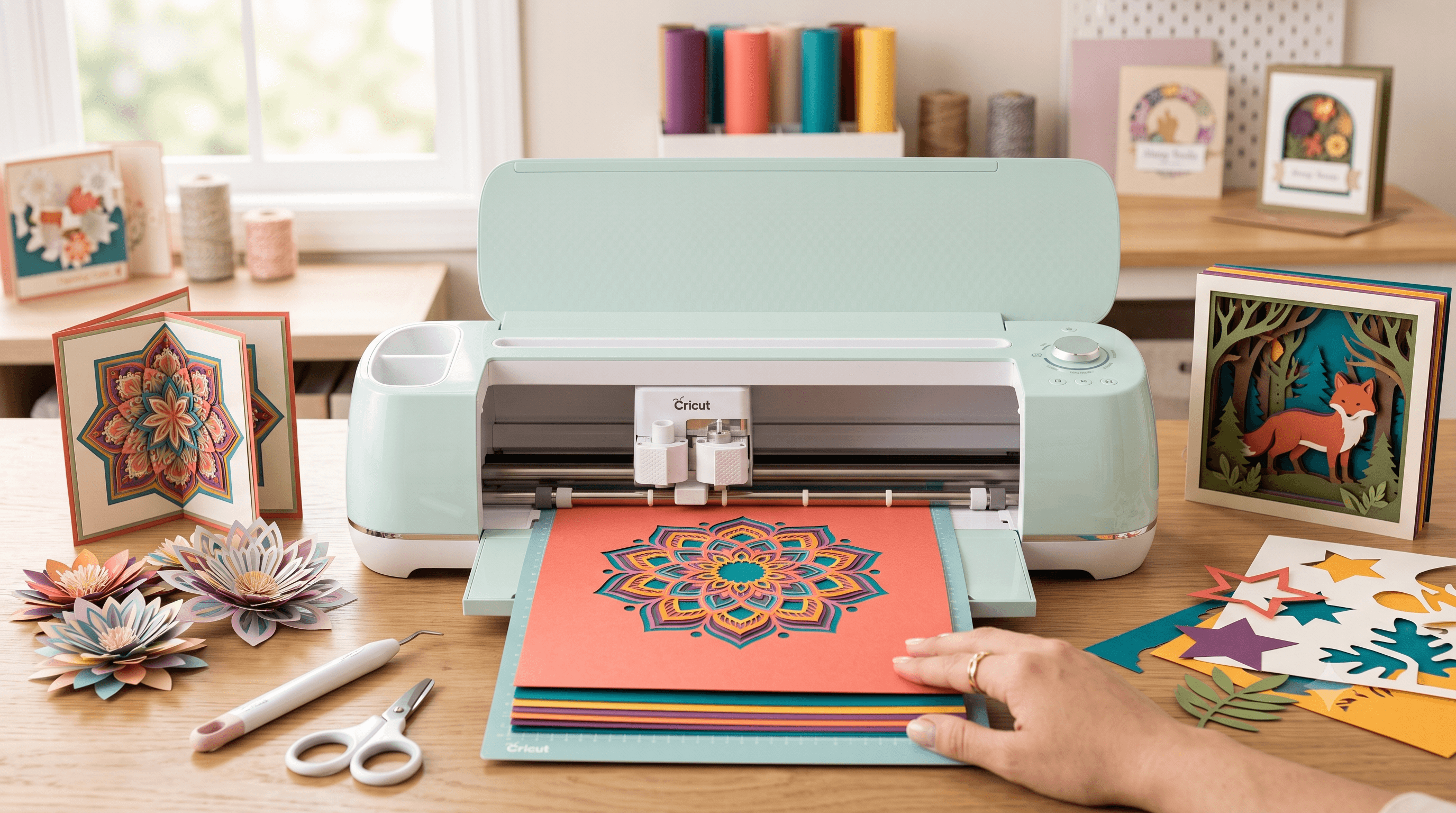
How to Cut Cardstock on Cricut (Without the Tearing and Frustration)
You load your cardstock, smooth it onto the mat, tap "Make It," and watch the blade drag across the surface like it's just scratching an itch. Or worse, it cuts halfway through and tears the rest. You peel it off the mat and half your design comes with it.
That moment is genuinely demoralizing, especially when you've seen what Cricut can do in other people's projects.
Here's the short answer: yes, Cricut cuts cardstock. It does it well. But "cardstock" covers a huge range of materials, and the machine doesn't guess which one you've loaded. Weight, blade condition, mat stickiness, and pressure settings all play into whether you get a clean cut or a crumpled mess. This post covers how to cut cardstock on Cricut without the frustration: what settings to use, why cuts fail, and how to fix them. No guesswork.
What Even Is Cardstock for Cricut?
Cardstock isn't one thing. It's a category, and the weight matters more than the brand.
Paper weight is measured in pounds (lb) or GSM (grams per square meter). For Cricut purposes, you're mostly dealing with three ranges:
65 lb cardstock is the lightest end, close to heavy printer paper. It cuts easily on almost every Cricut setting and is forgiving of a slightly dull blade.
80 lb cardstock is the sweet spot for most Cricut projects. It's sturdy enough to hold shape for cards and decorations but thin enough that the standard fine-point blade handles it well.
110 lb cardstock (sometimes labeled "heavy cardstock" or "cover weight") is noticeably thicker. It's great for box templates and sturdy gift tags, but it needs more pressure and the right blade to cut cleanly.
Beyond weight, texture changes how cardstock cuts. Smooth cardstock cuts cleanly and releases from the mat easily. Textured cardstock has more surface variation, which can cause the blade to drag or skip. Glitter cardstock has a coating that dulls blades faster than you'd expect. Foil cardstock is similar: beautiful results, but it punishes a dull blade immediately.
Cricut cardstock is calibrated for Design Space settings. Third-party cardstocks (from craft stores, Amazon, etc.) work fine, but you'll often need to test settings since the weight doesn't always match what's printed on the label.
If your cardstock doesn't list a weight, compare it to standard printer paper. If it feels noticeably stiffer and doesn't bend easily, it's likely 80 lb or heavier.
Yes, Cricut Can Cut Cardstock. Here's What You Need.
Can Cricut cut a cardstock? Absolutely. Can you cut cardstock with Cricut reliably, every time? Yes, once you've matched the right tools to the material.
Compatible machines: Every current Cricut cuts standard cardstock. The Explore Air 2, Explore 3, Maker, and Maker 3 all handle 65 lb to 110 lb cardstock with the right settings. The Cricut Joy cuts cardstock too, but it's limited to a 4.5" cut width, which rules out full 12x12" sheets.
Mat choice: The green StandardGrip mat works for most cardstock weights. For heavier cardstock (100 lb and up), the purple StrongGrip mat holds better and reduces shifting mid-cut. One thing to watch: a mat that's too sticky will tear lighter cardstock when you try to remove it.
Clean design files: This one surprises people. If your SVG has overlapping paths, duplicate nodes, or overly complex cut lines, the blade can drag or stutter through cardstock instead of cutting cleanly. A tool like CutMagic's SVG Fixer can clean up SVG files before you bring them into Design Space, which matters more than most people realize when cutting fussy materials.
The Right Settings for Cutting Cardstock on Cricut
When you set up a cut in Design Space, you'll select a material setting. The problem is there are several cardstock options, and picking the wrong one causes most of the problems.
Here's what the main settings actually mean for cutting cardstock on Cricut:
Cardstock (for simple cuts): Optimized for clean, straight-line cuts on standard 80 lb cardstock. Lower pressure than the intricate cuts setting. Works well for card bases and simple shapes.
Cardstock (for intricate cuts): More pressure, slower blade movement. This is the right choice for detailed designs, filigree, small lettering, or anything with tight curves.
Heavy cardstock: Use this for 100 lb and up. If you're cutting 110 lb and using the standard "Cardstock" setting, the blade often won't cut all the way through.
Glitter cardstock: A specific setting because the coating requires different pressure than plain stock. Don't skip this one if you're cutting glitter material.
Poster board: For the thickest flat materials that aren't quite chipboard.
One setting you should know about: in Design Space, you can manually adjust cut pressure without changing the material selection. Go to the material settings and look for the pressure slider or the "more pressure" option. This is useful when you're cutting a third-party cardstock that doesn't behave like the preset assumes.
Run a test cut before committing to a full sheet. Use the built-in test cut function (the small square Design Space offers before the main cut) or cut a small scrap piece first. It takes 30 seconds and saves ruined sheets.
Why Your Cricut Won't Cut Through Cardstock
This is the section most people actually need. When your Cricut won't cut through cardstock, the cause is almost always one of five things.
If tearing happens when you peel cardstock off the mat rather than during the cut, the issue is mat stickiness, not the blade or pressure. Switch to a less aggressive mat before changing anything else.
Cardstock Projects Worth Trying Once You've Got the Settings Right
Once your cuts are clean, cardstock opens up a wide range of projects.
Greeting cards and card bases: The obvious starting point. Scored fold lines come out crisp once pressure is dialed in.
3D paper flowers: These reward clean cuts because the petals layer and curl. Even a slightly torn edge shows.
Gift box templates: Cricut's box templates score and cut in one pass, which is deeply satisfying when settings are right.
Layered shadow box artwork: Multiple layers of cardstock at slightly different depths create a dimensional effect. Requires consistent cuts across every layer.
Party decorations and banners: Great for bulk cutting since you repeat the same shape many times. A clean setting here saves a lot of time.
Bookmarks and tags: Small, detailed cuts that show exactly where your blade and pressure settings stand.
Common Questions
Does Cricut cut cardstock?
Yes, every current Cricut machine cuts cardstock. The Explore Air 2, Explore 3, Maker, Maker 3, and Joy all handle standard cardstock weights. The key is matching the material setting and blade to the specific weight you're using.
What is the best cardstock weight for Cricut?
80 lb cardstock is the most reliable starting point. It cuts cleanly on the standard fine-point blade with the "Cardstock" material setting, and it's widely available. For projects needing more rigidity, 100 lb to 110 lb works well with the heavy cardstock setting.
Why does my Cricut keep tearing my cardstock?
Tearing usually has one of two causes. If it tears during cutting, the blade is probably dull or the pressure is too low. If it tears on removal, the mat is too sticky for that cardstock weight. Try the foil ball blade test, increase pressure in Design Space, or use a less aggressive mat.
Can I cut glitter cardstock with a Cricut?
Yes. Use the "Glitter cardstock" material setting in Design Space and consider switching to a deep-point blade for consistent results. Glitter coatings dull standard blades faster than plain stock, so check blade sharpness more frequently when working with it.
Getting There
Most cardstock cutting problems come down to the same three things: a blade that needs replacing, pressure settings that don't match the material weight, and a mat that's either too worn or too sticky.
None of these are hard to fix once you know what to look for. Run the foil test on your blade. Check that you're using "Heavy cardstock" or a manual pressure boost for anything over 90 lb. Make sure your mat is holding the cardstock flat without gripping it so hard it tears on removal.
Our AI SVG generator creates Cricut-optimized designs in seconds! Try SVG Generator →
Start with a test cut. Seriously. It takes two minutes and it tells you immediately whether your settings are right or need adjusting. If your settings are right and cuts still drag or stutter, the SVG file itself may be the problem. Fix your SVG using CutMagic's SVG Fixer before giving it another try.
Once you nail these variables, cutting cardstock on Cricut stops being a source of frustration and becomes one of the most satisfying parts of the machine. Give it one more try with fresh eyes on the settings.