
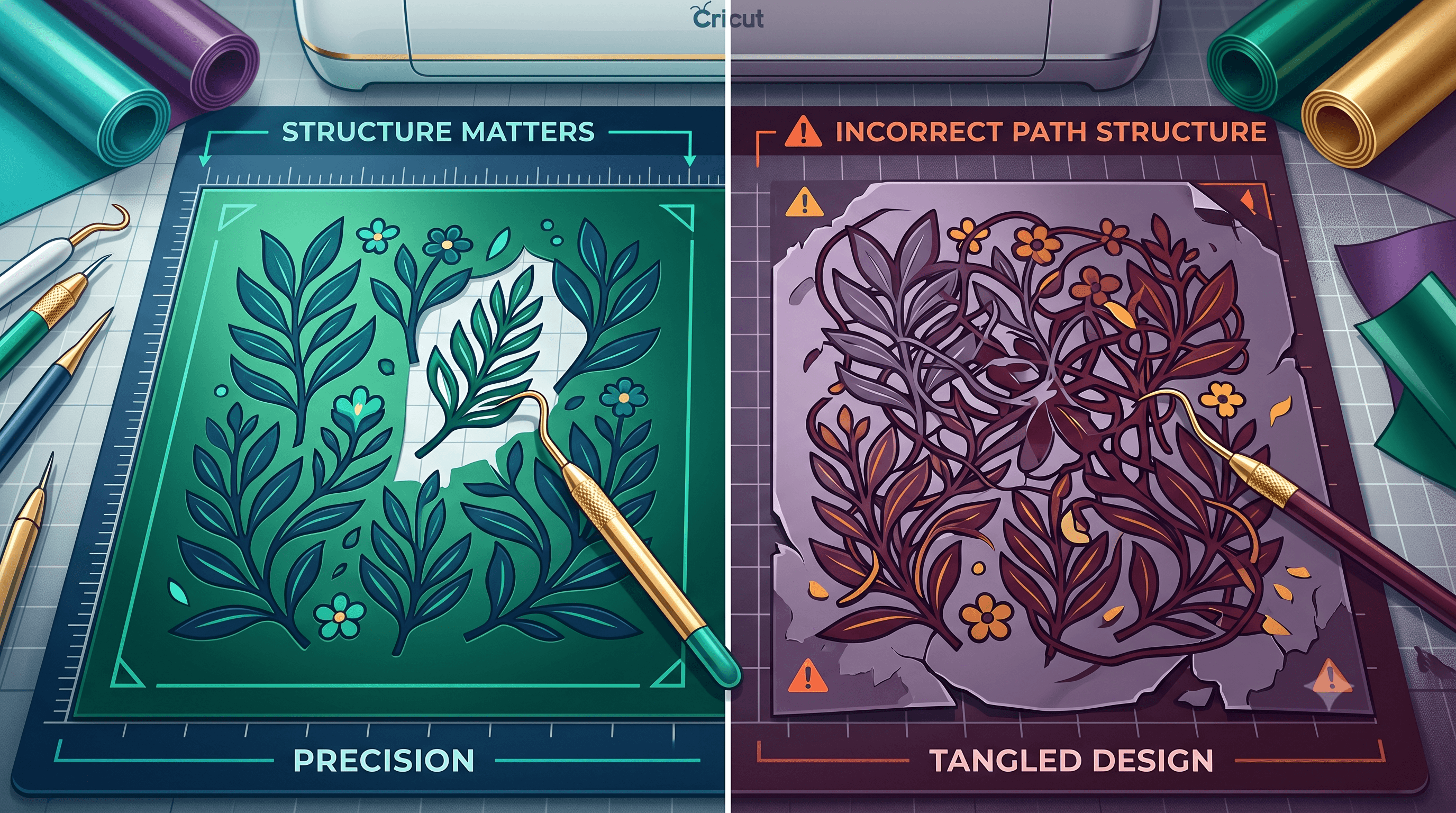
Delete vs Release Compound Path: Why It Matters for Cricut Weeding
Deleting a path and releasing a compound path look like they solve the same problem. Both make your file simpler. But they do completely different things to the underlying structure, and picking the wrong one is often the reason one design weeds cleanly while another falls apart in your hands.
What Actually Happens When You Delete a Path
When you select a shape and hit delete, that shape is gone. Not separated, not simplified, just removed from the file entirely.
This matters more than it sounds like it should. If the shape you just deleted was the hole inside a letter, like the counter of an "O" or the enclosed space in an "A," that hole doesn't exist anymore. What was a letter with a clean cutout is now a solid blob.
People reach for delete when a design looks messy in the preview pane. There's an extra shape sitting inside another one, so it seems logical to get rid of it. But that inner shape is usually doing a job. It's telling the cutter where the hole goes. Delete it and you haven't cleaned up the file, you've removed a feature.
Delete is for shapes you genuinely don't want in the final cut. It is not for separating shapes that are combined. This is the wrong tool almost every time someone's instinct is to simplify a compound letterform or a nested design.
What Release Compound Path Actually Does
Release compound path does something entirely different. It takes a single combined path and breaks it back into its individual component shapes, without deleting any of them.
Think of a letter like "B." In most SVGs, the outer outline and the two inner counters (the holes) are stored as one compound path. That's what tells your cutting machine to cut the outside but leave those areas open. When you release the compound path, you don't lose the holes. You get the outer shape and the two inner shapes back as three separate, fully intact objects.
Nothing is destroyed. The shapes are just no longer forced to behave as one merged unit. This is the key difference that trips people up: releasing a compound path preserves everything, it just separates it.
Compound Path vs Grouping
These two terms get used interchangeably, but they describe different relationships between shapes.
- Compound path: Multiple shapes are merged into a single path object. The software treats them as one thing, and the holes only exist because of how the paths overlap and interact.
- Group: Separate objects are bundled together for convenience, but each one stays completely intact and independent. Nothing about their individual paths changes.
A group is loose. A compound path is structural. That distinction is the whole reason delete and release compound path behave so differently on what looks like the same visual problem.
Ungroup vs Release Compound Path
This is the comparison that causes the most confusion, because both commands sound like they take things apart.
Ungroup separates objects that were only loosely bundled. If you selected three shapes and grouped them just to move them together, ungrouping puts you back to three independent shapes with no change to how they cut.
Release compound path separates shapes that were combined at the path level, and this often changes how holes and cutouts behave. Because compound paths use overlapping shapes to define open areas, releasing them can reveal shapes that were previously invisible or behaving as a hole in the design.
If you ungroup something that was actually a compound path, nothing happens, because ungroup doesn't touch path-level merging. That's usually the moment people get stuck and start troubleshooting the wrong thing.
Cricut Weeding for Beginners: Why This Actually Matters
None of this stays theoretical once you're standing at the mat with a weeding hook in hand. The file structure decides how the material behaves when you start pulling it apart.
If a design was flattened or a hole was deleted instead of released, that hole shows up filled on your material. You cut it, but there's no gap where the gap is supposed to be. If a compound path was left intact when it should have been separated, small interior pieces can tear at the wrong point because the machine cut it as one connected shape instead of distinct ones.
Uneven weeding, tearing at odd spots, and holes that should be open but aren't are almost always structural problems, not blade problems or material problems. Slowing down and using the right tool helps, but it can't fix a file that was built wrong before it ever reached the mat.
If you want to see what a clean structure actually looks like start to finish, the Ultimate Vinyl Tumbler Tutorial: From Design to Finished Product walks through a full project where the compound paths are handled correctly from design through weeding.
How to Break Apart an SVG Object the Right Way
When a design isn't cooperating, work through it in order instead of guessing.
If you've gone through this process and weeding still feels harder than it should, it's worth ruling out the blade itself before assuming the file is still the problem. The Cricut Blades 101: Every Blade Type, Installation, and When to Replace guide covers how blade wear and blade type can mimic the same symptoms as a structural file issue.
Cleaning Up a File Before It Ever Reaches Weeding
Getting compound path structure right by hand works fine on a simple design with one or two letters. It gets a lot harder to catch on detailed files with dozens of nested shapes, monograms, or intricate line art, where one missed hole is easy to overlook until you're already weeding.
These same structural issues don't only show up as weeding problems either. They're frequently the reason a file throws an upload or cut error before you even get to the mat. If you've run into that, the Why Won't My SVG Upload to Cricut? (2026 Complete Fix Guide) covers the upload side of this same root cause.
This is exactly the kind of check that's easy to automate. CutMagic's SVG Fixer scans a file and automatically corrects compound path structure before you cut, catching the same issue this article just walked through by hand.
The Takeaway
Before you assume a design is flawed or a blade needs replacing, check whether the file's compound paths are structured correctly first. That one distinction, between deleting a shape and releasing it from a compound path, explains a surprising amount of weeding trouble that otherwise looks like a mystery.