
Cricut Attach vs Weld: The Real Difference Explained
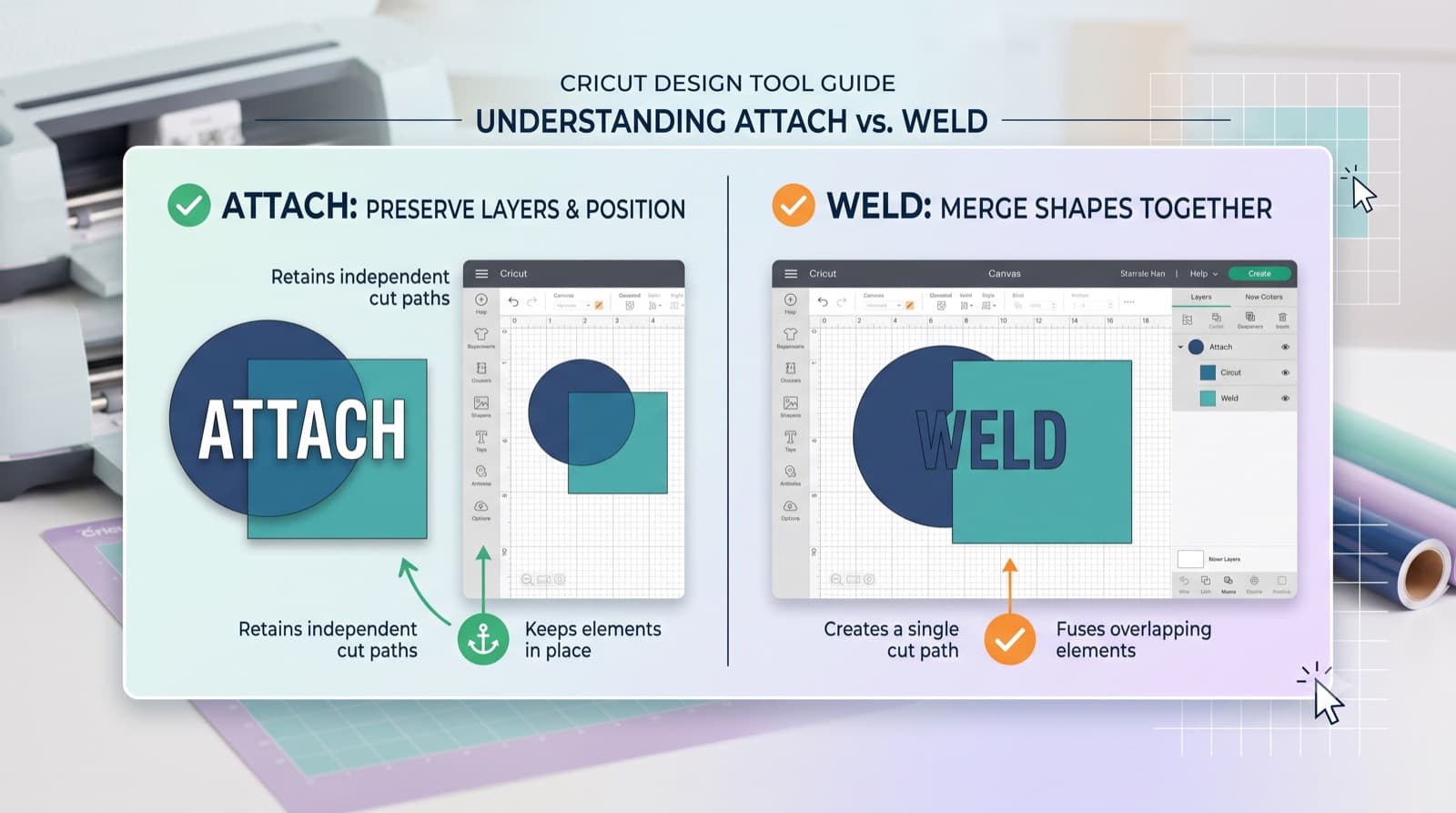
The core of the Cricut attach vs weld question comes down to this: attach keeps your layout and colors intact without changing any shapes, while weld merges overlapping shapes into a single new shape. They both sound like they "combine" things in Design Space, which is exactly why people mix them up. But they do opposite jobs. One preserves what you built. The other permanently changes it.
Most of the confusion around this pair disappears once your file is prepped correctly before it ever hits Design Space. We will get to that. First, here is what each tool is actually doing under the hood.
What Attach Actually Does
Attach locks the relative position and color of your layers so they cut and stay exactly where you placed them, without altering the shapes themselves. Nothing merges. Nothing changes. Attach is purely about keeping your layout intact from screen to mat to cut.
Say you have built a multi-color layered design, maybe a name badge with a base layer, a script overlay, and a small icon. Without attach, Design Space separates those pieces by color onto different mats for cutting, and it has no way of knowing how they are supposed to line back up once they are off the machine. Your careful spacing between the icon and the text gets lost.
Attach solves this by telling Design Space to keep everything exactly where you put it, even though the pieces will still cut on separate mats by color. What you see on screen is what comes off the mats, ready to assemble in the right spot.
This matters even more on designs with several small elements, like a layered ornament with five or six pieces. Without attach, you would be eyeballing placement after the cut. With it, the spacing survives the whole process.
Use attach when:
- You have got a multi-layer, multi-color design and need pieces to stay in position relative to each other after cutting.
- You want to preview or cut a layout exactly as designed, without merging any of the shapes.
- You need color-coded layers to stay separated for cutting on individual mats, but positioned correctly for assembly afterward.
Attach is for layout. Weld is for shape. If you just need things to stay put, reach for attach first.
What Weld Actually Does (and Where It Goes Wrong)
Weld merges overlapping shapes into a single new path, and it permanently deletes any lines where those shapes overlapped. This is the opposite move from attach. Instead of preserving your layout, weld collapses multiple shapes into one, and there is no layer structure left afterward, just one shape.
This is also where welded letters filling in trips people up. Script fonts and connected cursive letters often have overlapping strokes by design, that is how the letters visually connect on screen. When you weld them, Design Space removes every overlapping line it finds, including the ones that were supposed to define the inside of a loop or the gap between a stem and a serif.
The result is letters that look blobbed together instead of crisp and connected, especially in tight cursive where loops and connectors overlap heavily.
Can you undo a weld? Yes, but only in the moment. Undo immediately after welding will reverse it, and Design Space's undo history will let you step back within that same session. Once you save and close the project, or once you have already sent it to cut, there is no way back. The original separate shapes are gone, and your only real option at that point is to re-upload or rebuild the design from an unwelded copy, if you kept one.
Once a file is saved after welding, there is no undo. Always keep an unwelded backup copy of any design before you weld it.
It is also worth separating weld from group, since people conflate these too. Group is Design Space's default, non-destructive way to bundle shapes together so you can move or resize them as one unit. Nothing about the underlying shapes changes when you group them, and you can ungroup at any time to split them back apart exactly as they were. Weld is destructive and permanent. Group is neither of those things, it is closer to putting items in a folder than combining them.
Attach vs Weld vs Group: At a Glance
| Tool | What it does | Reversible? | Best for |
|---|---|---|---|
| Attach | Locks layout and color position, cuts on separate mats but preserves placement | Yes, click to undo attach anytime before cutting | Multi-layer, multi-color designs like badges or shadow-box layers |
| Weld | Merges overlapping shapes into one path, deletes overlap lines permanently | Only with immediate undo, before saving | Single-color monograms or connected cursive script |
| Group | Bundles shapes together for moving or resizing, no shape changes | Yes, ungroup anytime | Organizing your workspace while still designing |
When to Use Weld vs Attach
Knowing when to use weld vs attach comes down to what you are trying to preserve versus what you are trying to merge.
- Multi-layer, multi-color design → Attach. You need the pieces to stay positioned correctly relative to each other, not merge into one shape. Think layered mandalas, shadow-box designs, or anything with a base layer plus detail layers.
- Single-color monogram or connected script → Weld. You want one clean, continuous cut path with no overlapping lines showing, and there is only one color involved so there is nothing to keep separated.
- You just need to move pieces together without merging them → Group, not weld or attach. This is purely for organizing your workspace while you are still designing, before you have decided how the final file needs to cut.
One clarification: ungroup simply splits a group back into its individual, unchanged pieces. It has nothing to do with undoing a weld. If you welded shapes and want them separate again, ungroup will not help, you need to catch it with undo before you save, or start over from an unwelded copy. These are two entirely different operations that happen to sound similar.
How to Attach Layers in Design Space
How a Cleanly Prepped SVG Skips This Decision Entirely
Here is the part most tutorials skip: a lot of the attach-or-weld decision only exists because the SVG entering Design Space has messy, overlapping, or improperly closed paths in the first place. If letters or shapes are already separated and closed correctly before upload, there is often no compound-path overlap forcing you to weld just to make things look connected.
This is exactly the kind of cleanup CutMagic's SVG Fixer handles. It goes through an uploaded file's paths and fixes the underlying structure, so letters do not need welding to visually connect, and layers are already grouped correctly so they do not need attach just to hold their position. You are not choosing between two destructive-adjacent workflows on a messy file, you are starting from a file where the layout and connections are already correct before it ever reaches Design Space.
FAQ
Does attach change the shape of my design?
No. Attach only locks the position and color grouping of your layers. The shapes themselves stay exactly as you made them.
Can I undo a weld after saving the project?
No. Undo only works in the same session before you save or send the file to cut. Once saved, the original separate shapes are gone unless you kept a backup copy.
Do welded pieces still cut on separate mats?
No. Welding merges the shapes into a single path, so there is nothing left to separate by color or layer.
Do attached pieces cut on separate mats?
Yes, if they are different colors. Attach keeps their relative position correct for reassembly, but Design Space still sorts by color for cutting.
Is group the same as attach?
No. Group is a non-destructive way to move or resize shapes together while designing. It does not lock cutting position the way attach does, and it has no effect on how the file cuts.
Why do my script letters look blobbed together after welding?
Overlapping strokes in cursive fonts define the loops and connectors between letters. Welding removes every overlapping line, including the ones that were supposed to stay, which is why the letters can look merged into a blob.
The One-Line Rule
Attach keeps things apart in their correct positions. Weld merges things together, permanently. Group just herds pieces so you can move them as a unit. Once you know which job you actually need done, the choice stops being confusing.
And the less overlap and disorganization your SVG has going in, the less often you will need to reach for any of the three. Clean paths in, fewer decisions to second-guess later.