
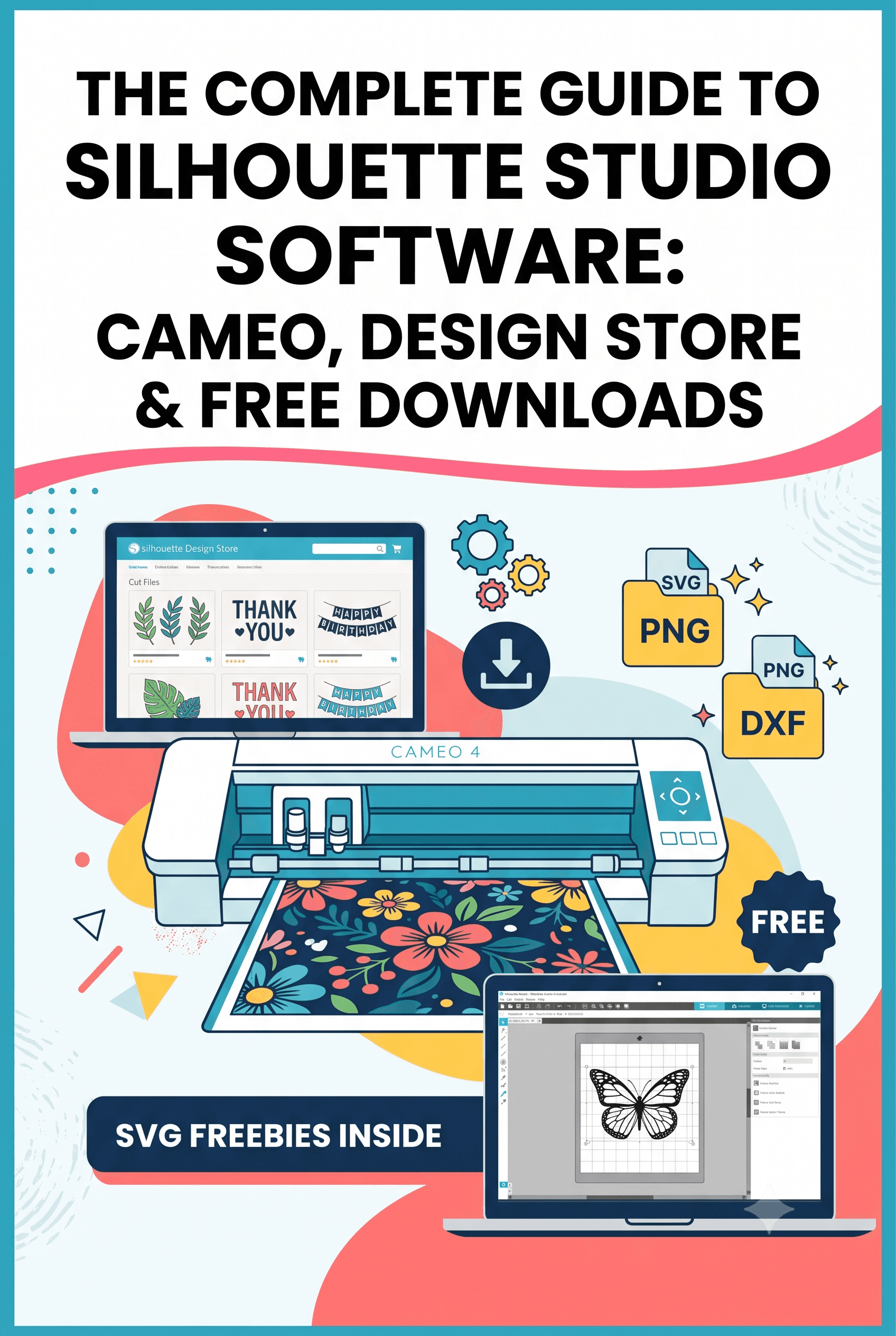
The Complete Guide to Silhouette Studio Software: Cameo, Design Store & Free Downloads
You've unboxed the machine, plugged it in, and the software is open on your screen. Now what? If you're staring at Silhouette Studio wondering where designs come from, why there are different editions, and what half the menu items actually do, that's completely normal. The software isn't complicated once it clicks, but the first hour can feel steeper than it needs to. This guide covers everything: what Silhouette Studio is and what it does, how to download it, which edition you actually need, where to find designs (including free ones), and what Silhouette Connect is and whether it matters to you. By the end, you'll have a clear picture of the whole silhouette design studio ecosystem and you'll be ready to cut something.
What Silhouette Studio Actually Is and What It Does
Silhouette Studio is the free software that runs every Silhouette machine. It's where you open designs, arrange them on your canvas, adjust cut settings, and then send the job to your machine. The machine itself doesn't do much without it. Every action, from resizing a shape to setting blade depth to telling the cutter where to start, happens inside this program.
It works with all current Silhouette machines: Cameo, Cameo Plus, Cameo Pro, Portrait 3, and the older generations as well.
Here's something that trips up a lot of new users: the software is called Silhouette Studio, not "Cameo Studio" or "Cameo software." People search for those terms constantly, and they make sense as a shorthand, but the official name is Silhouette Studio. Whether you own a Cameo, a Portrait, or anything else in the lineup, you're all running the same studio silhouette program. There isn't a separate Cameo-specific app or a different studio software depending on which machine you bought. One download, every machine. That's it.
Where to Get the Silhouette Cameo Software Download
Getting the software is straightforward. Go to silhouetteamerica.com, find the Software section (it's in the main navigation), select your operating system, and download the installer. It installs like any other desktop program. Once it's open, you can connect your machine via USB or Bluetooth and get going.
One thing to clear up for anyone who searched "Silhouette Cameo 3 software" hoping for a specific version: there isn't one. The current Silhouette Studio download works with the Cameo 3 just fine. Silhouette Cameo 3 software is just the current version of Silhouette Studio. Same download page, same installer. If you're setting up an older machine, you're not missing anything by using the current version.
The silhouette cameo software download is free. You'll see options to buy upgraded editions during or after installation, but you don't need them to get started, and you can skip them entirely to begin with.
Free vs Paid: Which Edition of the Studio Program Do You Actually Need?
Silhouette Studio comes in four editions, and the options can make the decision feel bigger than it is. Here's what each one actually means.
Basic (Free): This is what you get with your machine. It opens SVG, DXF, and Silhouette's own Studio file format. You get shapes, text tools, a drawing tool, and the full cut settings panel. For most beginners, this software studio edition handles everything they'll do for the first several months, and honestly, many crafters never feel the need to upgrade.
Designer Edition: A one-time paid upgrade. The main additions are rhinestone tools, print and cut capability (so you can print a design on your printer, then have the Cameo cut around it precisely), and a larger built-in library of fonts and designs. Worth considering if print-and-cut is part of what you want to do.
Designer Edition Plus: Adds more advanced design tools, sketch features, and extended print capabilities. This studio program tier is really for users who design their own files regularly from scratch, not someone working with downloaded designs.
Business Edition: High-volume and commercial use. Vectorization tools, advanced workflow features, and licensing for commercial production. Most home crafters will never need it.
Start with the free Basic edition and get a CutMagic subscription so you can fix your old SVGs as well as create new ones. Use it for a few weeks and see what you actually find yourself wanting to do that you can't. If you hit a wall where a specific feature would genuinely help, that's when upgrading makes sense. Don't pay for features on the assumption you'll use them.
What Is the Silhouette Design Store and How Does It Work?
The Silhouette Design Store is an online library of ready-to-cut designs. You can access it directly inside Silhouette Studio through the store panel, or through the website at silhouettedesignstore.com. Designs come from Silhouette America and from independent designers who sell through the platform.
You can buy designs individually, which typically run a dollar or two each, or subscribe to a monthly plan that gives you a set number of downloads. The designs download directly into your Silhouette Studio library once purchased, so there's no manual import step. Categories cover a huge range: seasonal designs, wedding and party SVGs, fonts, card templates, and much more.
The silhouette design store is convenient, especially early on when you want clean files that are guaranteed to work. That said, it's not your only option, and you don't need to spend money there to have plenty of designs to work with.
Free Silhouette Designs: Where to Find Them and What to Watch Out For
Free designs are everywhere, and finding them is one of the first things most new owners want to figure out.
Silhouette America itself occasionally offers free silhouette designs through their website and their email newsletter. The newsletter freebies are worth it alone, so sign up if you haven't. Creative Fabrica, Design Bundles, and similar marketplaces regularly offer free SVG files, often rotating their free selections weekly. Pinterest is a solid rabbit hole for this since bloggers and independent designers share free downloads constantly. Some Etsy sellers also include free sampler files, either as a standalone listing or with a purchase.
One practical note: not every free file you download will behave perfectly in Silhouette Studio right away. External SVGs sometimes have layering issues, too many anchor points, or path problems that cause the software to behave unexpectedly or the machine to cut in strange ways. It's not always obvious until you try to use the file.
CutMagic is designed specifically to clean up SVG files before you bring them into Silhouette Studio, which can save a lot of troubleshooting when a silhouette free download isn't behaving as expected.
Silhouette Connect: What It Is and Whether You Need It
Silhouette Connect is a separate plug-in, not part of Silhouette Studio itself. It lets you send cut jobs directly from programs like Adobe Illustrator or CorelDRAW to your Silhouette machine, without exporting the file and reopening it in Silhouette Studio. Designers and professionals who already live in those programs use silhouette connect so they can work entirely in their preferred software and skip the import step.
If you're working in Silhouette Studio, you don't need it. Full stop. It solves a specific workflow problem for a specific type of user. Beginners and general crafters who do everything inside Silhouette Studio have no use for it, and it costs extra. Skip it unless you're already working in Illustrator or a similar program and want a direct line to your machine.
Using Silhouette Studio With the Cameo Pro and Wider Format Machines
If you own a Cameo Pro or are considering one, the software situation is simple: same Silhouette Studio, no separate download. The cameo silhouette software detects which machine is connected and adjusts the canvas size accordingly. When you hook up a Cameo Pro, the workspace expands to reflect the wider cutting path. You don't configure this manually.
What does change with wider format cutting is how much file quality matters. A design with messy paths or an excessive number of nodes might cut fine at small sizes, but scale it up across a wide canvas and problems become much more visible. Getting into the habit of using clean, well-prepared SVG files matters more on the cameo pro than it might on a smaller format machine.
Clean Up Your Files Before You Cut
If you've got SVGs sitting around with layering issues or messy paths, it's worth fixing them before they cause problems on a cut:
Where This Leaves You
Silhouette Studio is free, it works with every machine in the lineup, and the Basic edition covers everything most crafters need. The design store is a solid source of ready-to-use files, but free options from newsletters, Creative Fabrica, and independent designers give you plenty to work with without spending anything. Silhouette Connect is for a specific professional workflow and you almost certainly don't need it. The paid editions are real upgrades for the right users, but they're not where you need to start.
Open the software, connect your machine, and run a test cut. That's the actual next step.