
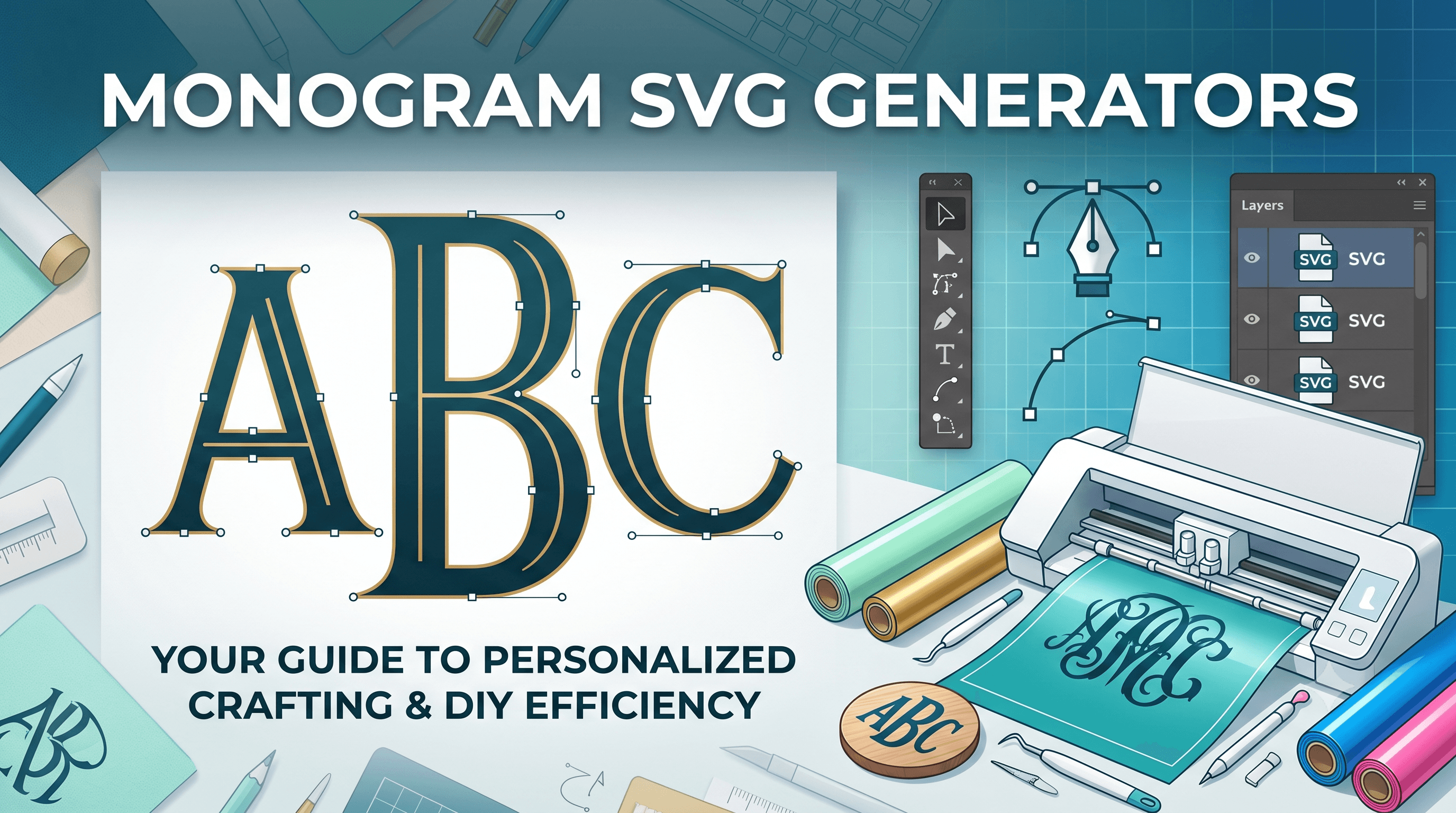
From Text Prompt to Cut-Ready Monogram: Build Custom Monogram SVGs in Seconds
Building a monogram SVG used to mean opening Illustrator, fighting with kerning, and manually resizing letters until the spacing looked right. With a monogram SVG generator, a text prompt does most of that work for you. Type out what you want, review the result, and you have a cut-ready file in a fraction of the time.
If you make monograms for yourself, for gifts, or as part of a custom order business, this changes how much time each design actually takes.
What Makes a Good Monogram SVG
A monogram looks simple, but the file behind it has to be precise. Letters need clean, single-color paths. Nothing should overlap unless you want it to. Spacing matters more than it seems, since the classic monogram style relies on the center letter being noticeably larger than the two flanking it.
Get any of that wrong by hand, and you end up with a cut where letters touch when they shouldn't, or where the proportions look off the moment it's pressed onto fabric or cut in vinyl.
This is exactly the kind of detail that's easy to describe in words and tedious to execute manually. A clear prompt (three initials, classic style, specific proportions) gives a generator everything it needs to build the spacing correctly the first time. For a broader look at personalized projects once your file is ready, this step-by-step backpack name guide is a good next read.
Classic vs Split Monogram Styles
Not every monogram follows the same layout. Knowing which style you want before you write your prompt saves you a round of edits.
- Classic monogram: three initials, with the center letter (usually the last name initial) larger than the two on either side. This is the traditional wedding, wreath, or towel-style monogram.
- Split monogram: a single letter or word split into two halves, with a name or design filling the gap in the middle. Common for door hangers, ornaments, and personalized signs.
A split monogram generator needs different instructions than a classic one, since you're describing a layout split rather than a size hierarchy. Being specific about which style you want up front is the single biggest factor in getting a usable result on the first try.
How to Create a Monogram SVG Online
Here's the actual process, step by step.
This process is what's behind CutMagic's SVG Generator tools generally, and it works the same whether you're making one monogram for yourself or setting up a repeatable process for custom orders. For more ways to build SVGs beyond monograms specifically, this guide to creating SVG files for Cricut covers the wider picture.
Making a 3-Letter Monogram SVG
The 3-letter monogram is the most common request you'll get, whether it's for yourself or a customer, so it's worth knowing how to prompt for it specifically.
When writing your prompt for a 3 letter monogram SVG maker, be explicit about:
- Which letter goes in the center and should be larger
- Whether the two side letters should be the same size as each other
- Any spacing preference (tight and connected, or with visible gaps)
The center letter should be clearly dominant, not just slightly bigger, or the monogram will read as uneven once it's on the actual material. This matters more on smaller projects like earrings or ornaments, where there's less room for the eye to correct for spacing that's slightly off.
Using Monogram SVGs for Custom Orders
If you sell personalized items, monograms are probably one of your most repeated requests. A custom order SVG generator approach makes this kind of repeat work faster without making it feel templated.
A few practical habits that help:
- Save your working prompt structure. Once you find a prompt format that consistently produces good results, reuse that structure and just swap in new initials or names.
- Batch similar requests. If you have five orders for classic 3-letter monograms, generate them back to back using the same prompt style for consistency across your shop.
- Keep a style reference. If customers expect a certain look from your shop (a specific font feel, spacing, or decorative style), note the prompt wording that gets you there so new team members or busy weeks don't break consistency.
If you're building out a monogram-focused shop section, it's worth also understanding how buyers evaluate SVG quality before purchase, covered in this guide to buying SVG files on Etsy, since the same quality markers apply to what you're producing.
The Takeaway
A monogram SVG is really a spacing and proportion problem more than a design one. Whether you're making a custom monogram SVG for Cricut for a one-off gift or running a shop full of personalized orders, a clear prompt (style, initials, proportions) solves most of the work before you ever open your cutting software. Get the prompt right, review the spacing once, and the file is ready to cut.