
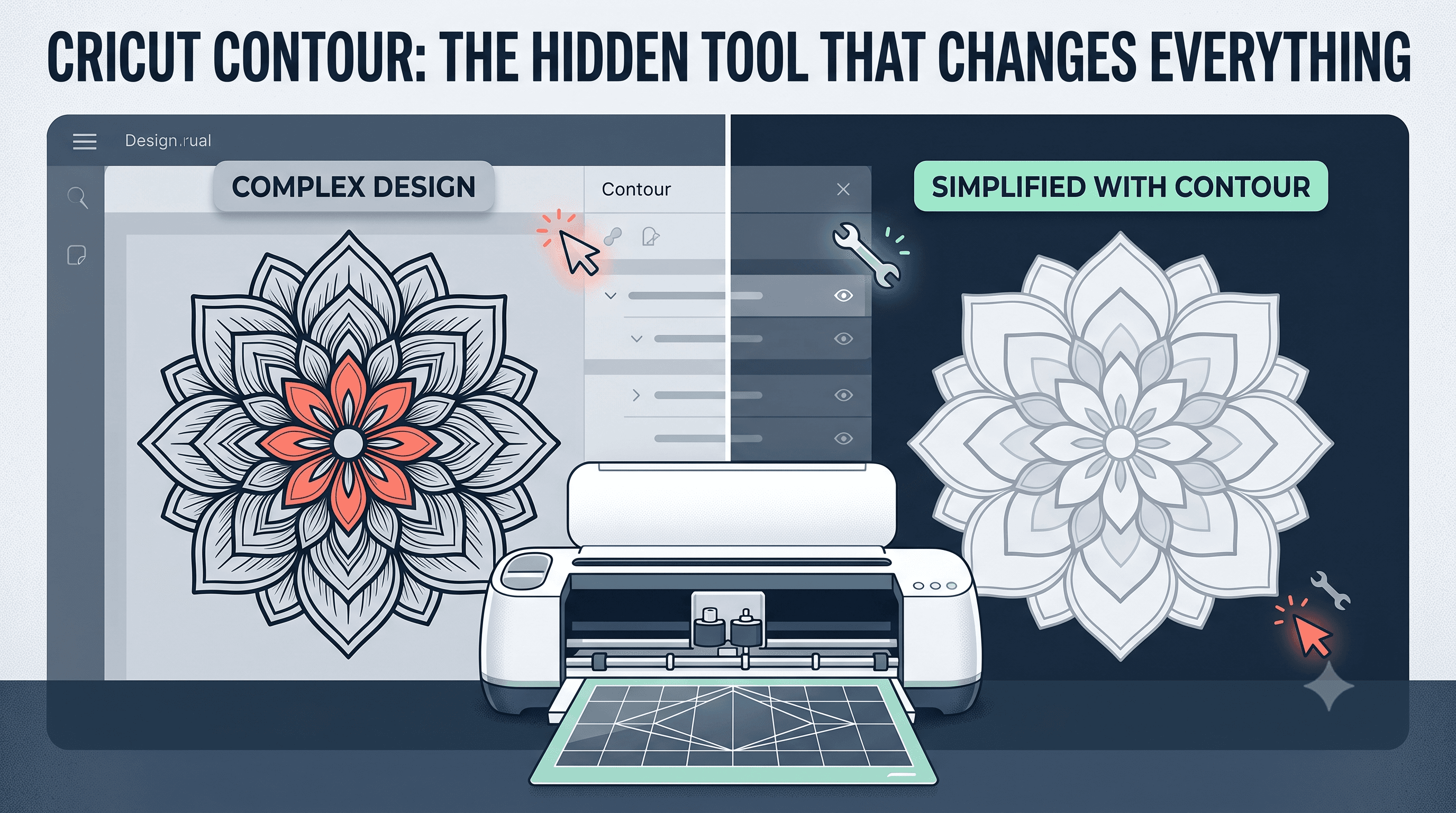
Cricut Contour: The Hidden Tool That Changes Everything
You upload an image, expecting Cricut to cut a clean outline. Instead, the preview shows every inner detail getting cut too: every fold line, every shadow, every little squiggle inside the design. What should've been one simple shape turns into a mess of slits once you weed it.
Here's the thing: Design Space has a tool built specifically to fix this, and most people never notice it. It's called contour, and once you understand what is contour in Cricut Design Space, you'll wonder how you cut anything without it. This post covers what contour actually does, how to use it step by step, and why it sometimes refuses to work at all.
What Contour Actually Does to Your Design
Contour hides specific cut lines inside an image without deleting them. The machine still has the full design loaded, it just skips the lines you've told it to ignore while cutting the ones you want.
Picture a flower image. It has the outer petal shapes (the lines you want cut) plus a bunch of inner lines showing veins and shading details (lines you don't want cut, since cutting them would slice your petals into pieces). Contour lets you hide those inner lines so only the petal outlines get cut. The petals stay whole instead of falling apart into confetti.
This is the core of what is contour in Cricut Design Space: it's a visibility toggle for cut lines, not an edit to the design itself. Nothing gets permanently changed and nothing gets removed from the file. You're just telling the machine which paths to read and which to skip.
That's different from deleting a layer, which removes part of the design entirely, or ungrouping, which separates elements so you can move or edit them independently. Contour doesn't touch the design's structure or appearance. It only changes what gets cut.
Where to Find the Contour Tool
Click on your image to select it on the canvas. Look at the right-hand panel, the one that shows layer options and editing tools. If your design qualifies, you'll see a button labeled "Contour."
One catch: contour only shows up for certain image types. Imported SVG files and images with multiple distinct cut lines will show a usable contour option. Basic shapes (a single circle, a plain square) and single-layer text won't, since there's nothing inside them to hide.
How to Use Contour: Step by Step
This is the part that trips people up the most, so let's go slow.
Here's how to use contour on Cricut without wasting mats: it's completely reversible. You can reopen the contour window anytime before you actually cut and adjust which lines are hidden or visible. Nothing is locked in until the blade touches the material.
Why Contour Sometimes Won't Work
If you've tried this and hit a wall, you're not alone. Here's why is contour not working on Cricut in most cases.
The design is a basic shape or single path. Contour needs multiple distinct cut lines to do anything. A plain square or a single-line text font only has one path, so there's nothing to hide. If this is your situation, contour simply isn't the right tool. Use weld (which merges shapes into one combined outline) or slice (which cuts one shape using another as a stencil) instead.
The image hasn't been ungrouped first. If your design has multiple layers but they're still bundled together as one grouped unit, Design Space may not let you access individual lines through contour. Right-click the design and choose ungroup, or separate the pieces in the layers panel, then try contour again.
The file has structural issues. This is one of the most common reasons why can't I contour in Cricut Design Space. SVG files with messy paths, overlapping lines, or compound shapes that weren't cleanly exported can confuse the contour function entirely, causing it to grey out or behave unpredictably. This shows up especially often with third-party SVG files rather than ones you've designed yourself.
It's worth knowing what to check before buying SVG files on Etsy, since poorly built files cause more contour headaches than anything else. If you're dealing with files like this regularly, CutMagic cleans up structural problems in SVG files before you upload them, which often resolves contour issues that have nothing to do with how you're using the tool.
The image type doesn't support it. Raster images (photos, scanned pictures, or flattened graphics without distinct vector lines) don't have contourable paths, because contour relies on actual vector line data to work with. If you're starting from a photo, you'll need to trace it into vector lines first. That's a separate process from contour, and it has to happen before contour becomes available.
Cricut Contour Button Greyed Out? Try This First
A greyed-out Cricut contour button is one of the most specific, frustrating versions of this problem. Before assuming your file is broken, run through this quick checklist:
- Make sure the image is actually selected. An unselected layer will always show contour as inactive, even if the design supports it.
- Check if the design is grouped. Ungroup it and try again.
- Refresh Design Space, or close and reopen the browser tab.
- Try a different browser if you're using the web version. Some rendering quirks are browser-specific.
- If none of that works, the file likely has the kind of structural issues covered above, and that's where you'll need to look next.
Run through these in order before you start questioning your design itself. Most of the time it's one of the first three.
Wrapping Up
Contour solves one specific, common problem: keeping a design's outer shape intact while removing the inner lines that would otherwise slice it apart. It doesn't delete anything and doesn't permanently change your file, it just tells the machine which lines to skip.
If contour isn't working for you, it's almost always because of design type incompatibility or file structure, not because you're doing something wrong. Try it first on a simple multi-layer design you don't care much about. Once you've seen how it behaves on something low-stakes, you'll trust it a lot more when you need it for a project that actually matters.